Docker Gordon Just Got Smarter - Here Are the Key Takeaways from the Latest Update
Ask ChatGPT why your container crashed, and you'll get a textbook answer. Ask Gordon, and it'll dig into your logs, find the culprit, and propose a fix. Here are 5 key takeaways from Docker's latest Gordon update in Desktop 4.61.

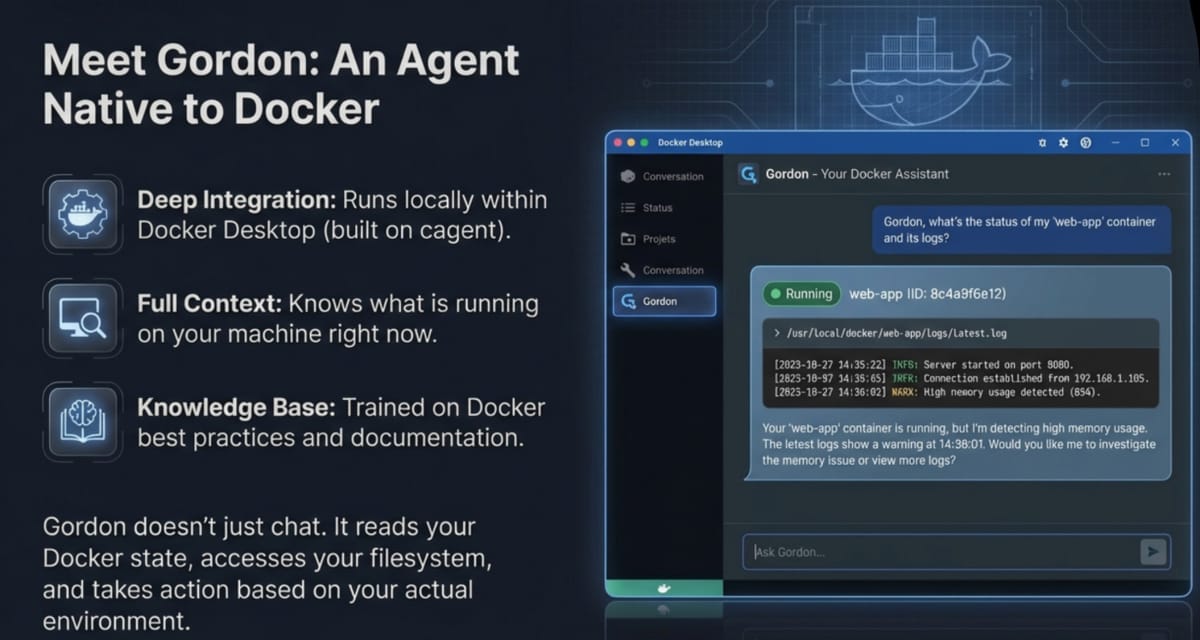
AI agents are everywhere now - writing code, running commands, completing multi-step tasks. But ask ChatGPT why your container just crashed, and you'll get a textbook answer. Ask Gordon, and it'll actually dig into your logs, find the culprit, and propose a fix. That's the difference.
Docker just shipped an update to Gordon in Docker Desktop 4.61, and if you haven't tried it yet, here's what you need to know.
What Is Gordon?
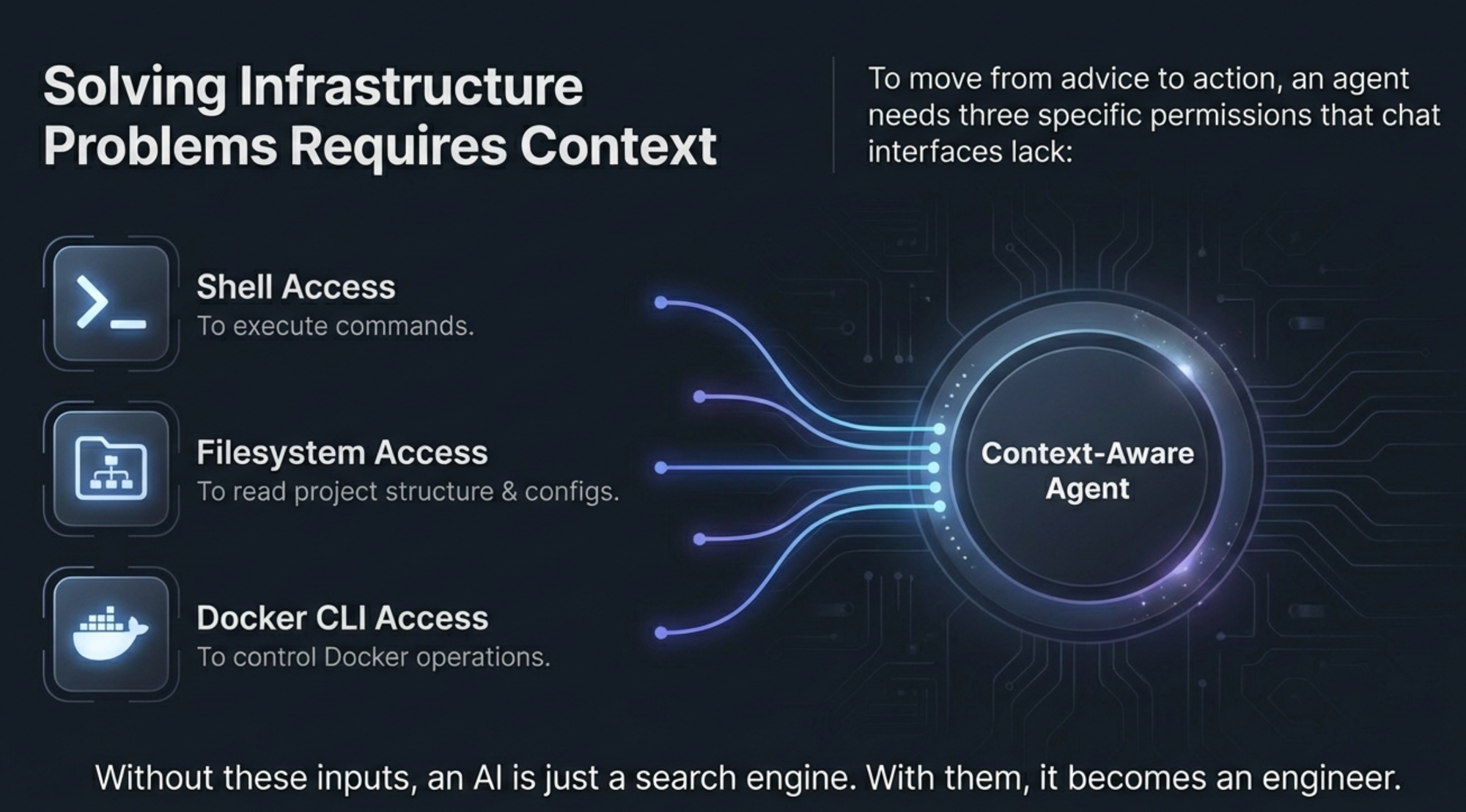
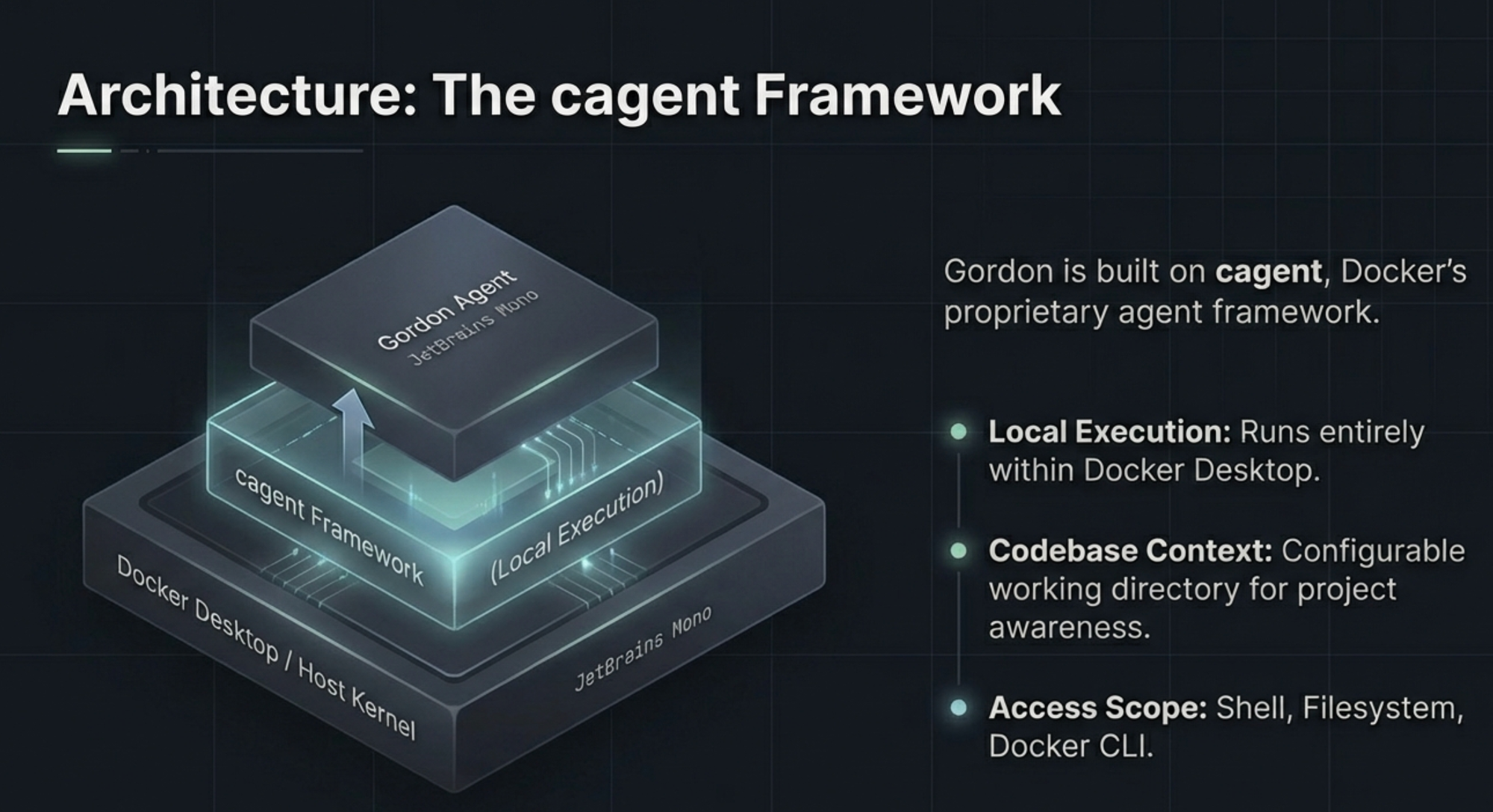
Gordon is Docker's purpose-built AI agent that runs locally inside Docker Desktop. Unlike general-purpose AI assistants, Gordon has direct access to your shell, filesystem, Docker CLI, and Docker's own knowledge base. Think of it as having a Docker-savvy engineer sitting inside your terminal.
It's built on Docker Agent (originally called cagent), Docker's open-source agent framework, and you can launch it either from the Docker Desktop sidebar or by running docker ai in your terminal.
Key Takeaway #1: Context Is Everything
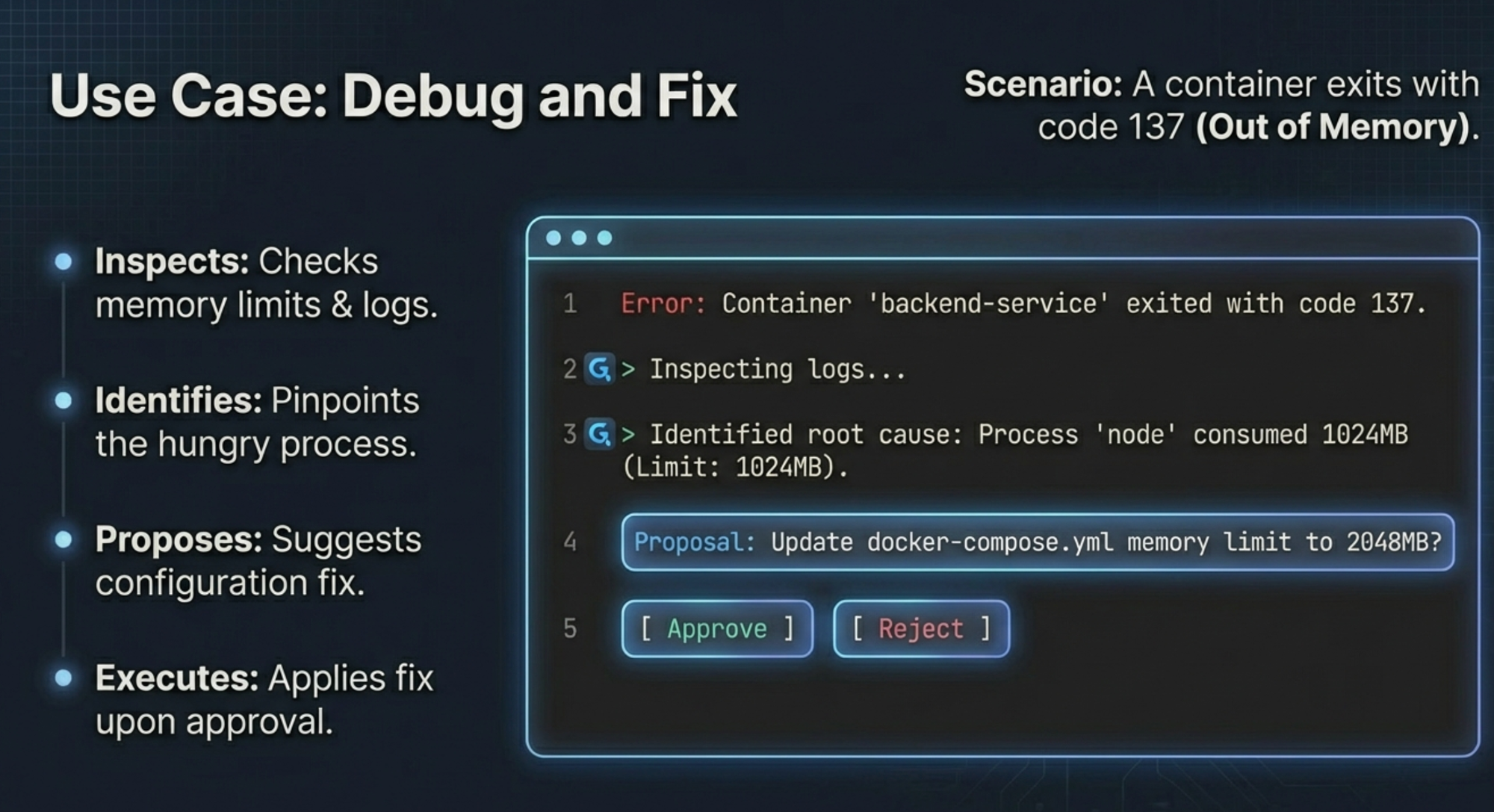
This is the fundamental shift. When you ask a general AI about an OOM kill (exit code 137), it explains what OOM means. When you ask Gordon, it checks your container's actual memory limit, reads your local logs, identifies which process is eating memory, and hands you a fix to approve.
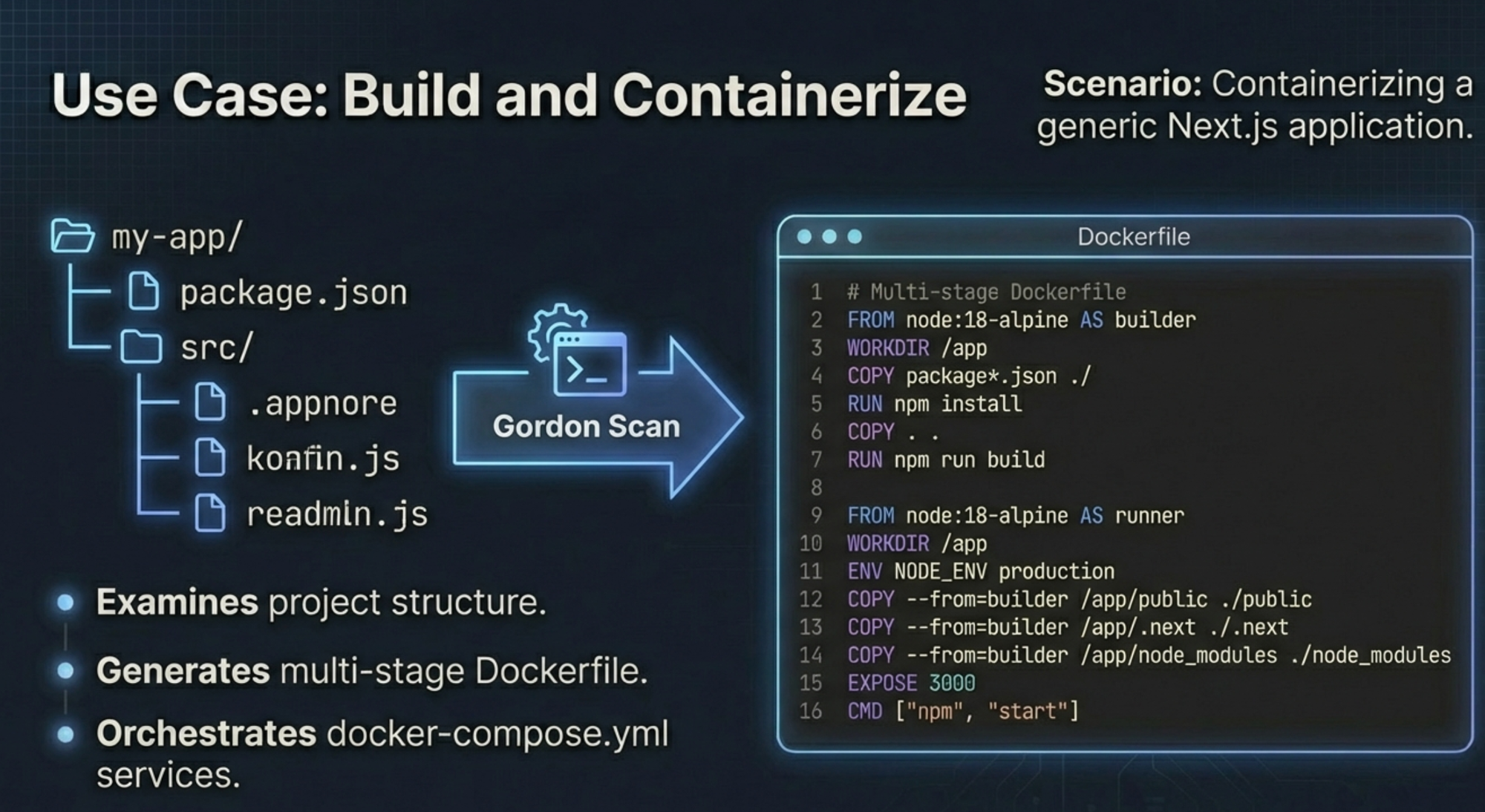
The same applies to containerizing applications. Instead of generating a generic Dockerfile template, Gordon examines your actual project structure — your package.json, your dependencies, your existing configs — and produces a production-ready Dockerfile with multi-stage builds and a matching docker-compose.yml.
The takeaway: Gordon doesn't guess from training data. It works with your real environment.
Key Takeaway #2: It's an Agent, Not a Chatbot
Gordon doesn't just answer questions — it takes action. The capabilities fall into four buckets:
- Debug and Fix — Inspects logs, checks container health, identifies root causes, and executes fixes
- Build and Containerize — Generates production-ready Dockerfiles and Compose files tailored to your project
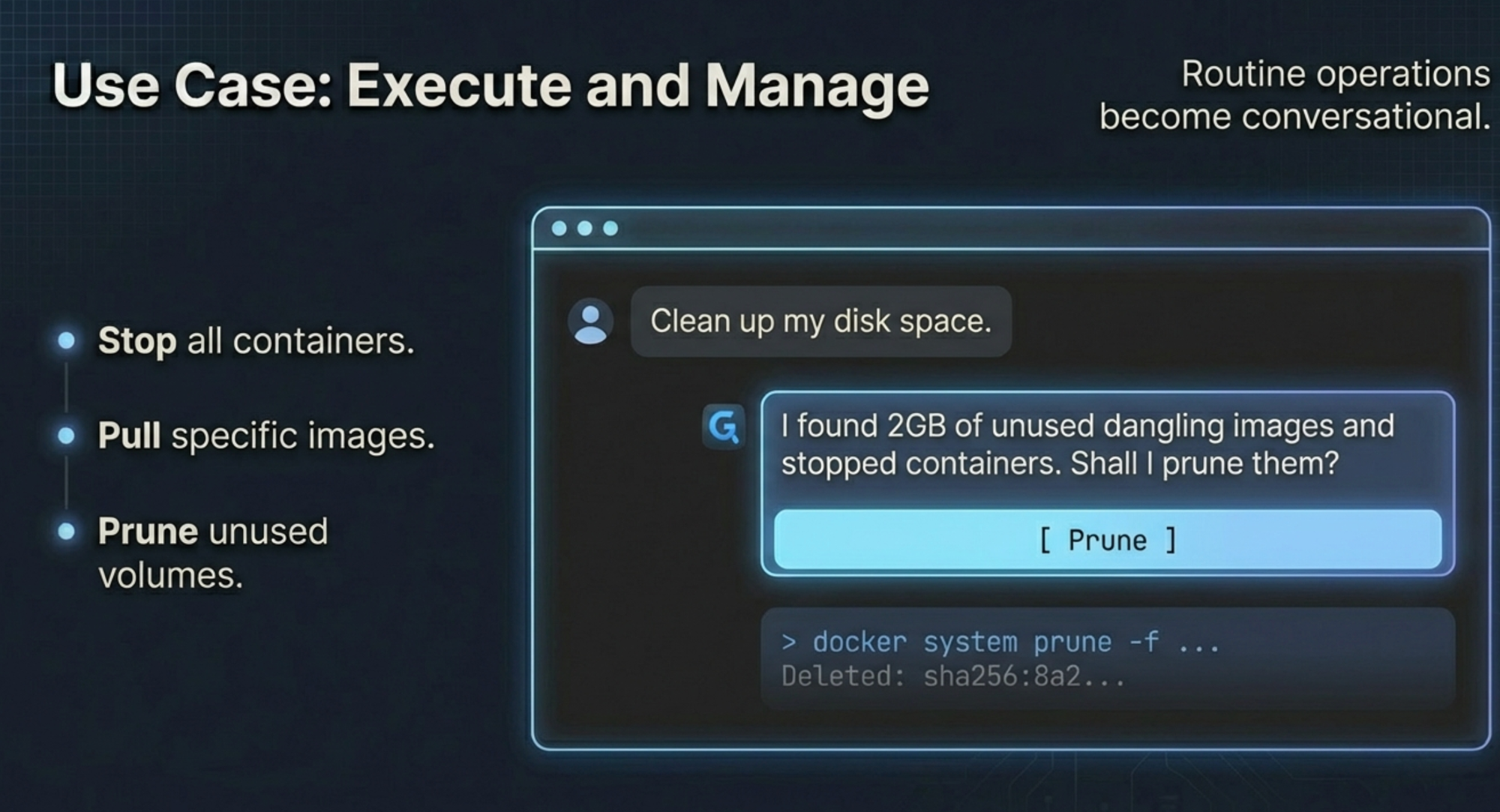
- Execute and Manage — Handles routine ops like cleanup, stopping containers, pulling images — all conversational
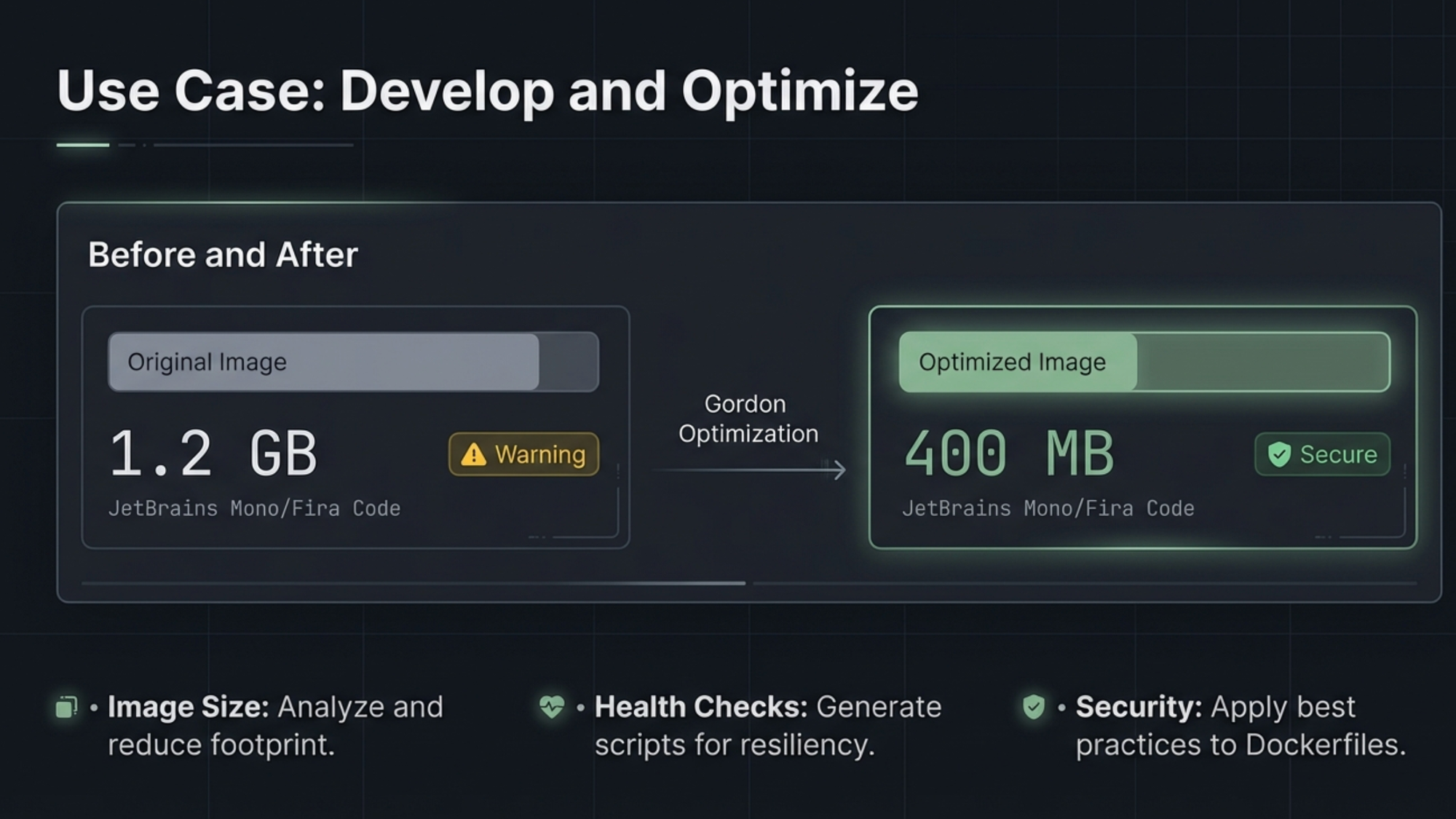
- Develop and Optimize — Adds health checks, implements multi-stage builds, applies security best practices, shrinks image sizes
This is the cagent framework at work — Gordon has tool access, not just language ability.
Key Takeaway #3: Human-in-the-Loop by Design
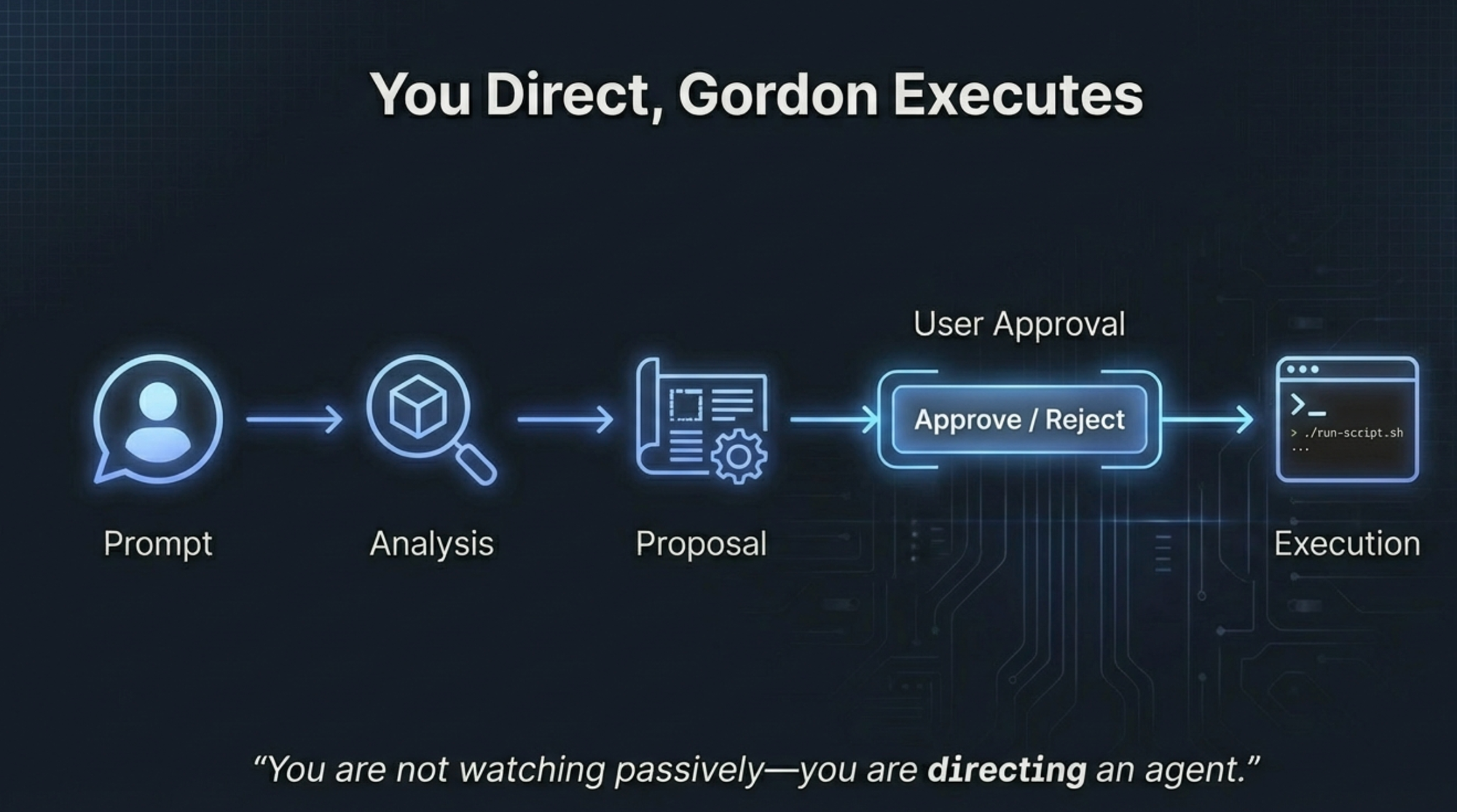
Every action Gordon wants to take — every shell command, every file edit, every Docker operation — requires your explicit approval. You see exactly what it plans to do before it does it. This isn't an afterthought; it's the core permission model.
You direct. Gordon executes. Nothing happens without your sign-off.
Key Takeaway #4: Available Across All Docker Subscriptions
Gordon ships with every Docker subscription tier, with scaling usage capacity:
| Subscription | Gordon Access |
|---|---|
| Personal | Included |
| Pro | 3x usage capacity |
| Team | 3x usage capacity |
| Business | 6x usage capacity |
Note for Business users: If Gordon isn't showing up, your admin needs to request enablement for your organization through your Docker account team.
Key Takeaway #5: The Bigger Picture — Agents Are the New Interface
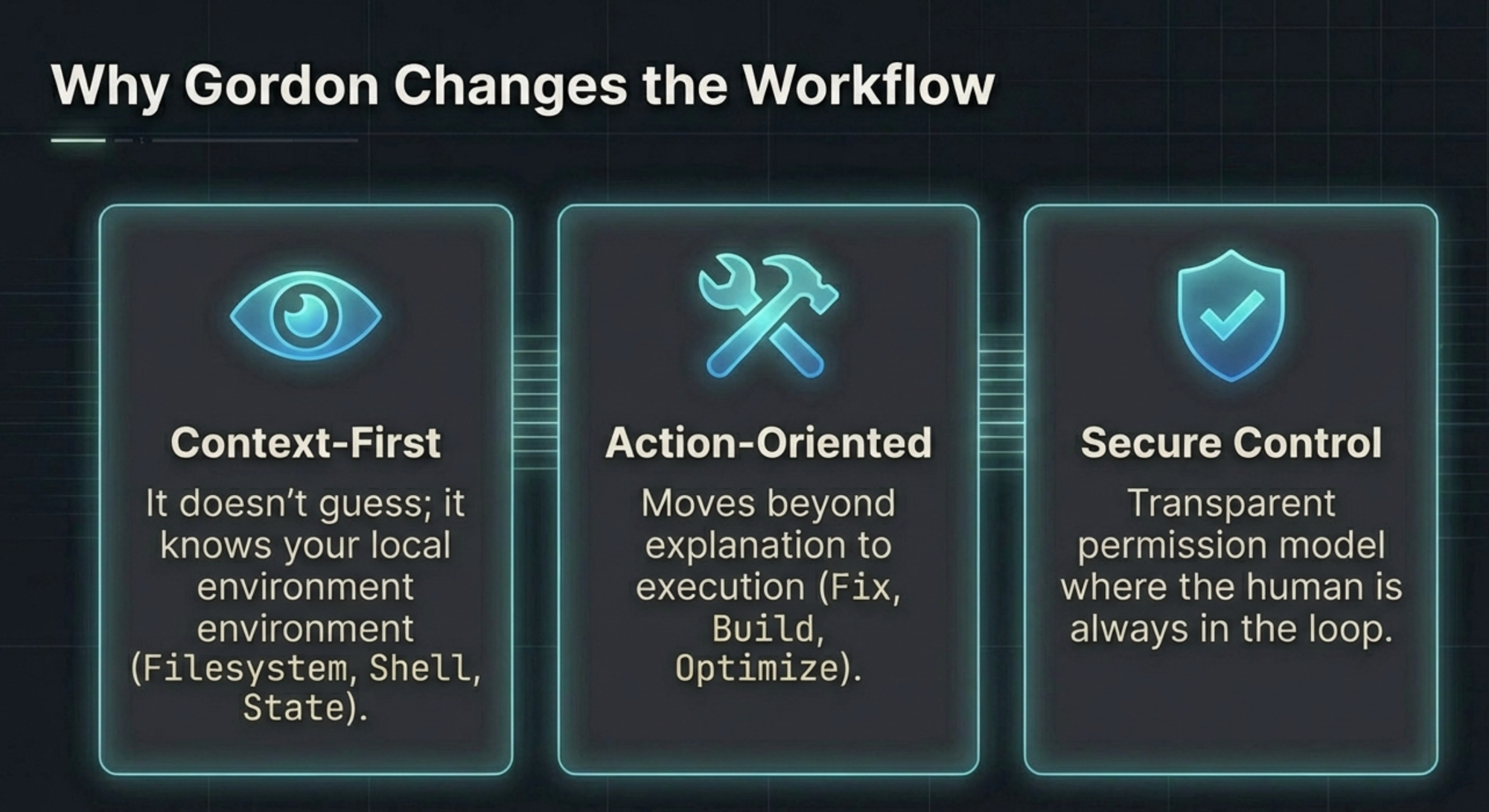
Gordon represents a broader shift in how we interact with developer tools. Instead of memorizing CLI flags or searching documentation, you describe what you want in natural language and an agent with the right context handles execution.
This is especially powerful for Docker because container management involves so many moving parts — images, volumes, networks, compose files, environment variables, health checks, security configs. Having an agent that understands all of these in the context of your specific setup changes the workflow entirely.
Getting Started
- Update to Docker Desktop 4.61+
- Log in with your Docker account
- Click the Gordon icon in the sidebar, or run
docker aifrom your terminal - Point it at your project directory and try: "Optimize my Dockerfile"
Check out the full documentation at Docker Docs.