Stop Running Agents in Containers. Run Them in MicroVMs with Docker sbx
Containers share your host kernel. A container escape gives root on your machine. MicroVMs don't. They give each agent its own kernel, enforced by hardware. Docker sbx is how you run Claude Code, Codex, or any coding agent with full autonomy and zero host risk. Here's exactly how it works.

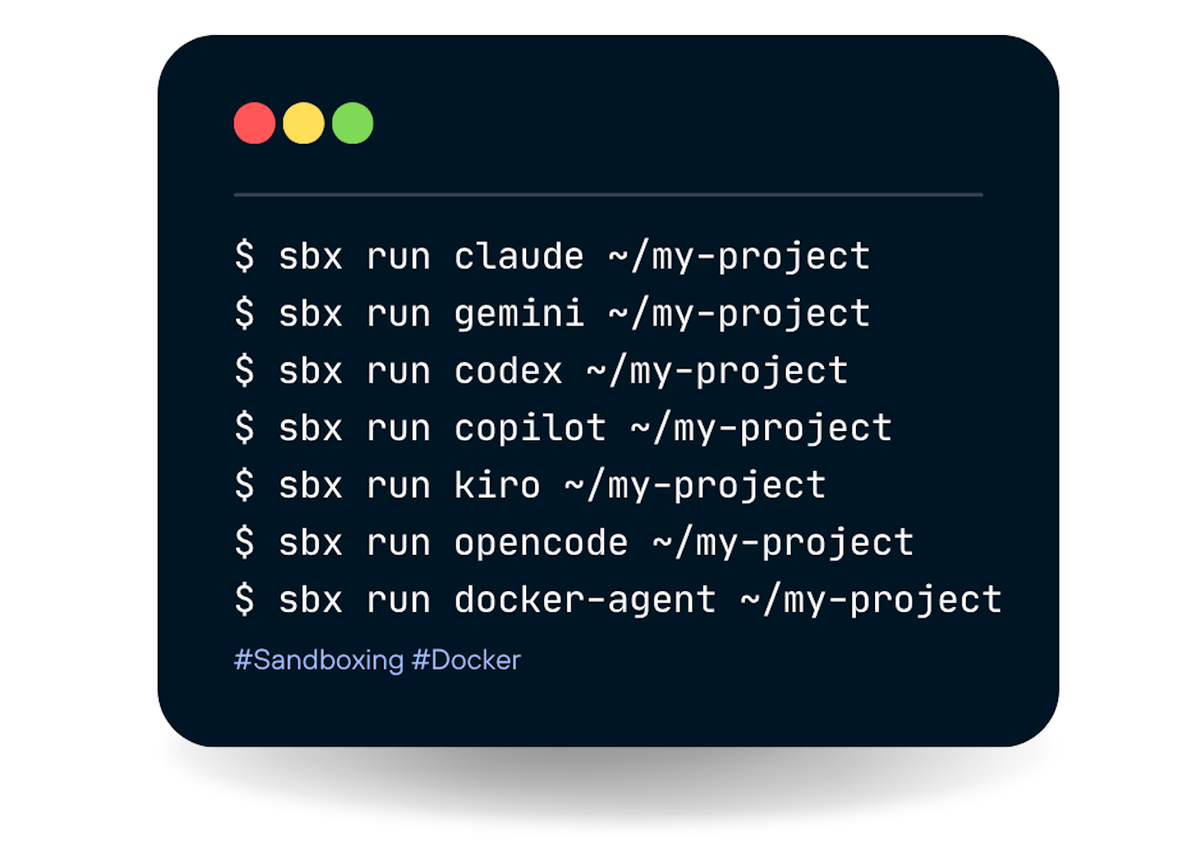
I've been playing with AI coding agents long enough to know the anxiety that comes with them. You give Claude Code a task, tell it to "just go ahead and do it," and then spend the next ten minutes hovering over your terminal wondering what it's quietly touching. Your SSH keys are sitting right there. Your .env file with the AWS credentials. Your entire home directory.
Containers feel like the obvious answer. But they're not really a sandbox, they share your host kernel. A container escape gives an attacker root on your machine. That's not a theoretical concern anymore.
Docker sbx takes a different approach. Every agent runs inside a dedicated microVM ~ its own kernel, its own private Docker daemon, its own filesystem. The only thing shared with your Mac is the workspace directory you mount. Everything else? Hard boundary.
I spent time this week going through every step of the sbx experience ~ install, auth, shell sandbox, Claude Code sandbox, port publishing and documented exactly what happens. Here's the full picture.
 Ajeet Singh Raina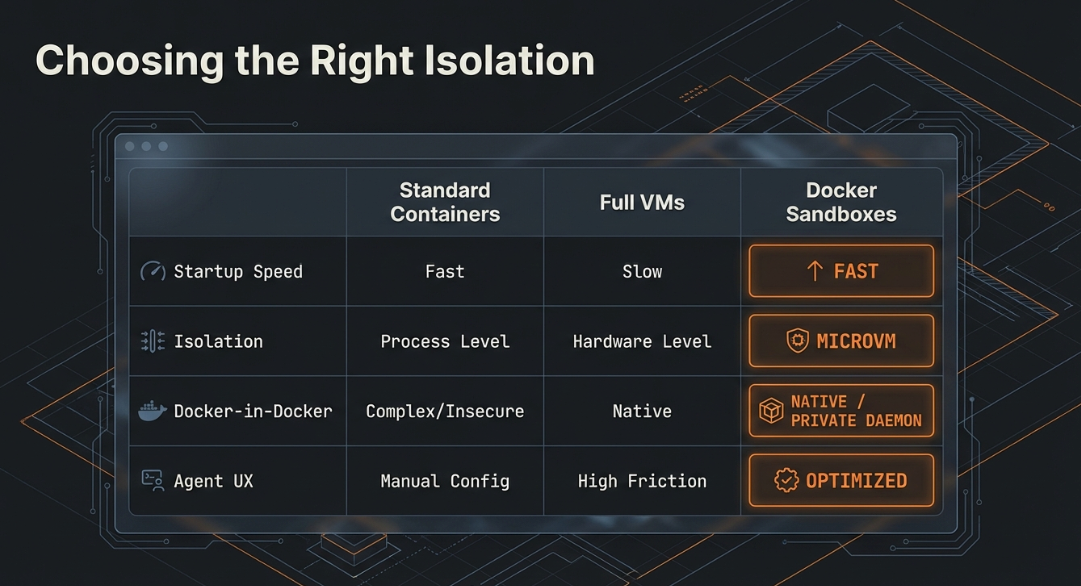
What sbx Actually Is
 Docker Inc
sbx is Docker's standalone CLI for creating isolated sandbox environments for AI agents. The key word is standalone ~ it does not require Docker Desktop to be running. You install it via Homebrew, authenticate with your Docker account, and you're off.
There's also docker sandbox, which is built into Docker Desktop 4.58+. The two are related but different products. sbx is the one you want if you're on Linux, in CI/CD, or want the full feature set: port publishing, secrets, blueprints, network policies, and the TUI.
Step 1: Install sbx
brew install docker/tap/sbxHomebrew taps docker/homebrew-tap, pulls version 0.20.0, and installs the sbx binary at /opt/homebrew/bin/sbx. Shell completions for bash, zsh, and fish are included automatically.
For Windows:
winget install Docker.sbxStep 2: Verify the Installation
Run sbx with no arguments and you get the full help output:
Docker Sandboxes creates isolated sandbox environments for AI agents, powered by Docker.

Available Commands:
  blueprint   Manage blueprint artifacts
  create      Create a sandbox for an agent
  exec        Execute a command inside a sandbox
  login       Sign in to Docker
  ls          List sandboxes
  policy      Manage sandbox policies
  ports       Manage sandbox port publishing
  reset       Reset all sandboxes and clean up state
  rm          Remove one or more sandboxes
  run         Run an agent in a sandbox
  save        Save a snapshot of the sandbox as a template
  secret      Manage stored secrets
  stop        Stop one or more sandboxes without removing them
  version     Show Docker Sandboxes version information
There's also a TUI ~ run sbx with no arguments in interactive mode and you get a live dashboard: sandbox list on the left, real-time network monitor on the right. You can create sandboxes, watch network traffic, and manage everything without typing full commands. It's genuinely useful.
Step 3: Authenticate
sbx loginOutput:
Your one-time device confirmation code is: HKBK-TLDN
Open this URL to sign in: https://login.docker.com/activate?user_code=HKBK-TLDN
Waiting for authentication...
Signed in as ajeetraina777.
Standard device flow ~ open the URL in a browser, confirm the code, the CLI waits and then confirms. The sandboxd daemon starts automatically here and runs independently of your shell session. Logs go to ~/Library/Application Support/com.docker.sandboxes/ on macOS.
Step 4: Create a Shell Sandbox
sbx create shell .Here's what happens when you run this:
- Pulls the sandbox template image from the registry (one-time download, ~43 MB, cached after)
- Boots a microVM using Apple Virtualization.framework on Mac
- Mounts your current directory at the same absolute path inside the VM
- Names the sandbox automatically: agent type + directory name
So if you're in a directory called sbx-test, you get a sandbox named shell-sbx-test. Clean auto-naming.
The output:
✓ Created sandbox 'shell-sbx-test'
  Workspace: /Users/ajeetraina/sbx-test (direct mount)
  Agent: shell
To connect to this sandbox, run:
  sbx run shell-sbx-test
Those 16 layers being pulled are the microVM rootfs ~ Linux base OS, guest kernel, private Docker daemon, and shell agent tooling. Pull once, reuse forever.
What you get inside the VM (verified):
| Resource | Verified Value |
|---|---|
| Kernel | Linux 6.12.44 (aarch64) |
| OS | Ubuntu 25.10 (Questing Quokka) |
| CPU | 4 vCPUs, 1 thread/core |
| Memory | 17 GiB total, 0 B swap |
| Disk | 20 GiB overlay, ~40 MB used fresh |
| Docker | Private daemon 29.3.1 |
Default memory is 50% of host RAM (max 32 GiB). You can override: sbx create --memory 8g shell .
One thing worth noting: no swap. At the memory limit, processes get OOM-killed. There's no soft landing.
Step 5: List Your Sandboxes
sbx lsSANDBOX AGENT STATUS PORTS WORKSPACE
shell-sbx-test shell running /Users/ajeetraina/sbx-testSimple, clear. Name, agent type, status, published ports, and workspace path.
Step 6: Enter the Sandbox
sbx run shell-sbx-testINFO: Starting Docker daemon
Starting shell agent in sandbox 'shell-sbx-test'...
Workspace: /Users/ajeetraina/sbx-testYou're now inside a Linux 6.12.44 microVM running Ubuntu 25.10. Let me show you two things that matter.
Isolation Proof
Inside the sandbox, run hello-world using the private daemon:
agent@shell-sbx-test:sbx-test$ docker run --rm hello-worldIt pulls from Docker Hub, runs, prints the familiar message. Now open a second terminal on your host Mac and run:
docker ps -aCONTAINER ID IMAGE COMMAND CREATED STATUS
d93c2fb68830 docker/desktop-cloud-provider-kind:v0.5.0 "..." 12 days ago Up 3 hours
202ae941dbf8 docker/desktop-containerd-registry-mirror:v0.0.3 "..." 12 days ago Up 3 hours
326e06341c5f kindest/node:v1.34.3 "..." 12 days ago Up 3 hours
...hello-world is completely absent. It ran inside the sandbox's private Docker daemon. The host knows nothing about it. That's a hard VM boundary — not a container namespace trick, not a cgroup limitation. A separate kernel.
Workspace Sync Proof
Inside the sandbox:
agent@shell-sbx-test:sbx-test$ echo "created inside the microVM" > /Users/ajeetraina/sbx-test/proof.txt
cat /Users/ajeetraina/sbx-test/proof.txt
created inside the microVM
On your host Mac immediately after:
cat ~/sbx-test/proof.txt
created inside the microVM
File written inside the microVM appears on the host instantly at the same absolute path. Bidirectional. Real-time. This is the key design insight: execution is isolated, files are shared. Your agent can modify your codebase; it just can't touch anything outside the mounted workspace.
Step 7: Create the Claude Sandbox
sbx create --name claude-test claude .This pulls the Claude-specific layers on top of the shell base image you already have. Only the delta — Claude Code, Node.js runtime, and Claude-specific tooling — needs downloading.
✓ Created sandbox 'claude-test'
  Workspace: /Users/ajeetraina/sbx-test (direct mount)
  Agent: claude
To connect to this sandbox, run:
  sbx run claude-test
Then:
sbx run claude-testInstead of dropping you into a bash shell, this launches Claude Code directly inside the VM. Your Anthropic API key is injected transparently via a proxy — it's never stored inside the VM itself.
What happened when I gave Claude a real task — "create a simple Python Flask app with a Dockerfile, build and run it" — is worth describing in full.
Claude logged in as Opus 4.6 (1M context) · Claude Max and got to work:
- Wrote
app.py,requirements.txt, andDockerfileinto~/sbx-test - Ran
docker build -t flask-app .using the private daemon inside the VM - pip installed Flask dependencies (took about 2 minutes)
- Ran the container
While Claude was building, I checked the host Mac in a second terminal:
ls ~/sbx-test/
app.py    Dockerfile    proof.txt    requirements.txt
All four files were visible on the host in real time. The Dockerfile was clean:
FROM python:3.12-slim
WORKDIR /app
COPY requirements.txt .
RUN pip install --no-cache-dir -r requirements.txt
COPY app.py .
EXPOSE 5000
CMD ["python", "app.py"]
But the running Flask container? Not in docker ps on the host. Completely invisible. Files shared, execution isolated.
Bonus: Publishing Ports from the Sandbox
The Flask container was running inside the VM bound to the VM's localhost — not your Mac's localhost. To reach it from your Mac, you publish a port:
sbx ports claude-test --publish 5000
Published 127.0.0.1:49152 -> 5000/tcp
Then:
curl http://127.0.0.1:49152
Hello from Flask running in Docker!
The full port command reference:
# List published ports
sbx ports my-sandbox

# Publish sandbox port 8080 to an ephemeral host port
sbx ports my-sandbox --publish 8080

# Publish with a specific host port
sbx ports my-sandbox --publish 3000:8080

# Unpublish a port
sbx ports my-sandbox --unpublish 3000:8080
sbx vs docker sandbox: Which One Should You Use?
| Scenario | Recommended |
|---|---|
| Mac/Windows developer, Docker Desktop installed | docker sandbox — already available, zero extra install |
| Linux developer using Docker CE | sbx — standalone via Homebrew or GitHub releases |
| CI/CD pipeline needing sandboxed agent execution | sbx — no Desktop dependency, scriptable |
| Want port publishing | sbx ports --publish — not available in docker sandbox CLI |
| Want network allow/deny lists | Both — docker sandbox network proxy or sbx policy |
| Want secrets, blueprints, resource policies | sbx — exposes sbx secret, sbx blueprint, sbx policy |
| Quickest path to first sandbox | docker sandbox run shell ~/myproject — simplest UX |
| Building for cloud / multi-agent / enterprise | sbx — this is the vehicle for the full product vision |
The Commands That Actually Matter
Here's the validated subset ~ every command in this list was run and verified:
| Command | What It Does |
|---|---|
sbx login | Authenticate with Docker account, start sandboxd daemon |
sbx create shell . | Create shell sandbox in current directory |
sbx create --name claude-test claude . | Create Claude Code sandbox with custom name |
sbx ls | List sandboxes — NAME, AGENT, STATUS, PORTS, WORKSPACE |
sbx run [sandbox] | Attach and start agent session |
sbx ports [sandbox] --publish PORT | Publish sandbox port (ephemeral host port) |
sbx ports [sandbox] --publish H:P | Publish with fixed host port |
sbx ports [sandbox] --unpublish H:P | Remove a port mapping |
Why This Matters
The gap between docker ps on the host showing nothing and ls ~/sbx-test/ showing everything Claude wrote that's the entire value proposition in one observation.
You're not giving up the ability to work with your files. You're not running blind. You're just removing the part where a coding agent can accidentally (or not so accidentally) touch your SSH keys, your cloud credentials, or anything outside the directory you gave it.
MicroVMs make this a hardware guarantee, not a software convention. That's the difference.
Docker Sandboxes is still experimental ~ things will break, the API will change. But the isolation model is solid, and the developer experience (especially the TUI and auto-naming) is already well thought out.
If you've been holding back on running agents with full autonomy because of system risk, this is worth a brew install docker/tap/sbx.