Teaching Clawdbot About Docker
A quick guide to creating a Docker skill for Clawdbot — bringing container management, image analysis, and Compose operations to your favorite messaging platform.

Last weekend, I stumbled onto something called Clawdbot. It's basically a self-hosted AI assistant that you can chat with through Discord, Slack, or even WhatsApp. Cool, but I wasn't sure what I'd actually use it for.
Then it hit me — what if I could just ask it about my Docker environment instead of typing commands?
So I tried it. And honestly? I was impressed.
Why Bother When We Have Ask Gordon?
I work at Docker. I use Ask Gordon daily — it's brilliant for Dockerfile optimization, DHI migrations, and debugging right inside Docker Desktop.
But here's the thing: I'm not always in Docker Desktop.
Sometimes I'm on my phone in a Discord server and want to quickly check if my home lab containers are healthy. Sometimes I want my Collabnix community members to interact with Docker through a bot. Sometimes I just want an assistant that does Docker and a dozen other things — all in one place.
That's where Clawdbot comes in. It's not replacing Gordon. It's extending Docker intelligence to places Gordon doesn't go.
Creating the Docker Skill
Clawdbot has this concept of "skills" — basically markdown files that tell the AI how to do specific things. So I created a simple Docker skill:
mkdir -p ~/clawd/skills/docker
Here's what my SKILL.md file looks like:
# 🐳 Docker Management Skill

You help users manage Docker containers, images, and compose stacks.
Use the exec tool to run Docker commands when asked.

## Container Operations

| Task | Command |
|------|---------|
| List running | `docker ps` |
| List all | `docker ps -a` |
| View logs | `docker logs <name> --tail 100` |
| Follow logs | `docker logs <name> -f --tail 50` |
| Stats | `docker stats --no-stream` |
| Inspect | `docker inspect <name>` |
| Exec into | `docker exec -it <name> sh` |
| Restart | `docker restart <name>` |
| Stop | `docker stop <name>` |

## Image Operations

| Task | Command |
|------|---------|
| List images | `docker images` |
| Pull image | `docker pull <image>` |
| Build | `docker build -t <name> .` |
| Security scan | `docker scout cves <image>` |
| Recommendations | `docker scout recommendations <image>` |

## Docker Compose

| Task | Command |
|------|---------|
| List services | `docker compose ps` |
| Start stack | `docker compose up -d` |
| Stop stack | `docker compose down` |
| View logs | `docker compose logs --tail 50` |
| Pull updates | `docker compose pull` |

## System & Cleanup

| Task | Command |
|------|---------|
| Disk usage | `docker system df` |
| Detailed usage | `docker system df -v` |
| Prune all | `docker system prune -f` |
| List networks | `docker network ls` |
| List volumes | `docker volume ls` |

## Output Formatting

For cleaner output, use format flags:

```bash
# Containers
docker ps --format "table {{.Names}}\t{{.Status}}\t{{.Ports}}"

# Images
docker images --format "table {{.Repository}}\t{{.Tag}}\t{{.Size}}"
Safety Rules
- ALWAYS confirm before running: rm, prune, down, stop, kill
- Limit log output with --tail to avoid flooding
- Never expose secrets or env vars in responses
- When in doubt, show the command first and ask
The key was telling it when to use these commands and how to present the output in a way that's actually useful. Notice the safety rules at the bottom — I don't want it randomly pruning my images without asking!
The Moment It Clicked
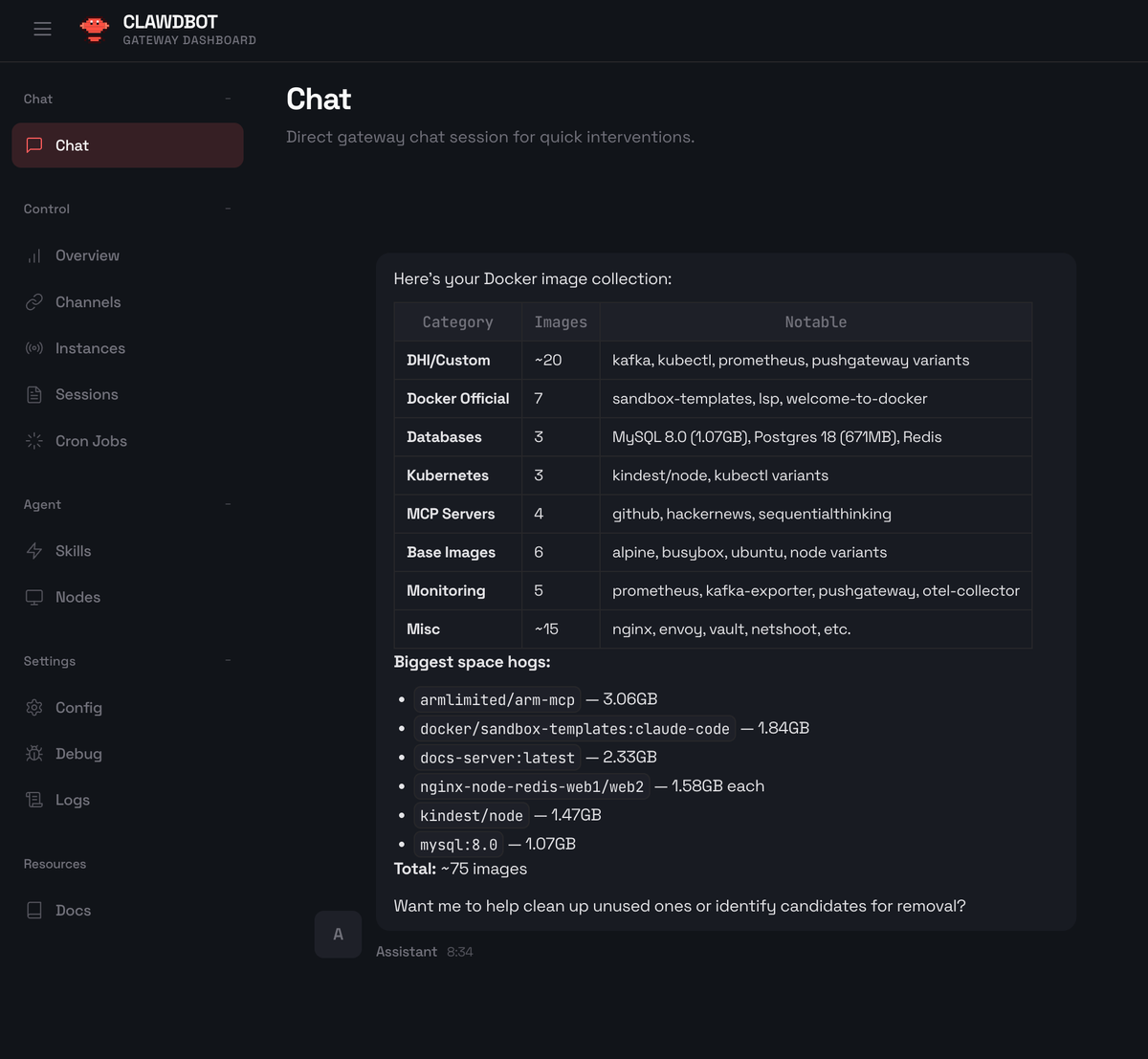
I opened the Clawdbot dashboard and typed:
"Show me all my Docker images"
Instead of dumping 75 lines of raw output, it came back with this:
Here's your Docker image collection:
| Category | Count | Notable |
|---|---|---|
| DHI/Custom | ~20 | kafka, kubectl, prometheus |
| Docker Official | 7 | sandbox-templates, lsp |
| Databases | 3 | MySQL 8.0, Postgres 18, Redis |
| MCP Servers | 4 | github, hackernews |
| Base Images | 6 | alpine, busybox, ubuntu |
Biggest space hogs:
- armlimited/arm-mcp — 3.06GB
- docker/sandbox-templates:claude-code — 1.84GB
- docs-server:latest — 2.33GB
Total: ~75 images
And then it asked: "Want me to help clean up unused ones?"
That's when I realized — this isn't just running commands. It's actually understanding my Docker environment and presenting it in a way that makes sense.
What I Use It For Now
Quick health checks: "Are any containers restarting?" — It checks and tells me in plain English.
Cleanup sessions: "Find images I haven't used in a month" — It identifies candidates and asks before removing anything.
Debugging: "Why is my nginx container unhealthy?" — It pulls logs, checks the health status, and summarizes what's wrong.
Learning: My teammates can ask it Docker questions and get helpful answers without memorizing flags.
How to Try It Yourself
Option 1: Docker (my preference)
# Clone the repo
git clone https://github.com/clawdbot/clawdbot.git
cd clawdbot

# Run the setup script — handles everything
./docker-setup.sh
This builds the image, runs onboarding, and starts the gateway. Open http://127.0.0.1:18789/ and paste the token it generates.
Option 2: Direct install
curl -fsSL https://clawd.bot/install.sh | bash
clawdbot onboard --install-daemon
clawdbot gateway
Then create your Docker skill:
mkdir -p ~/clawd/skills/docker
# Add your SKILL.md file with Docker commands
The whole thing took me maybe 15 minutes.
 Ajeet Singh Raina