Building a Web Dashboard for Your Tapo CCTV Camera using Docker
Build a beautiful web dashboard for your Tapo CCTV cameras using Docker Compose, tapo-rest API, and vanilla JavaScript - control your cameras from any browser in 15 minutes.

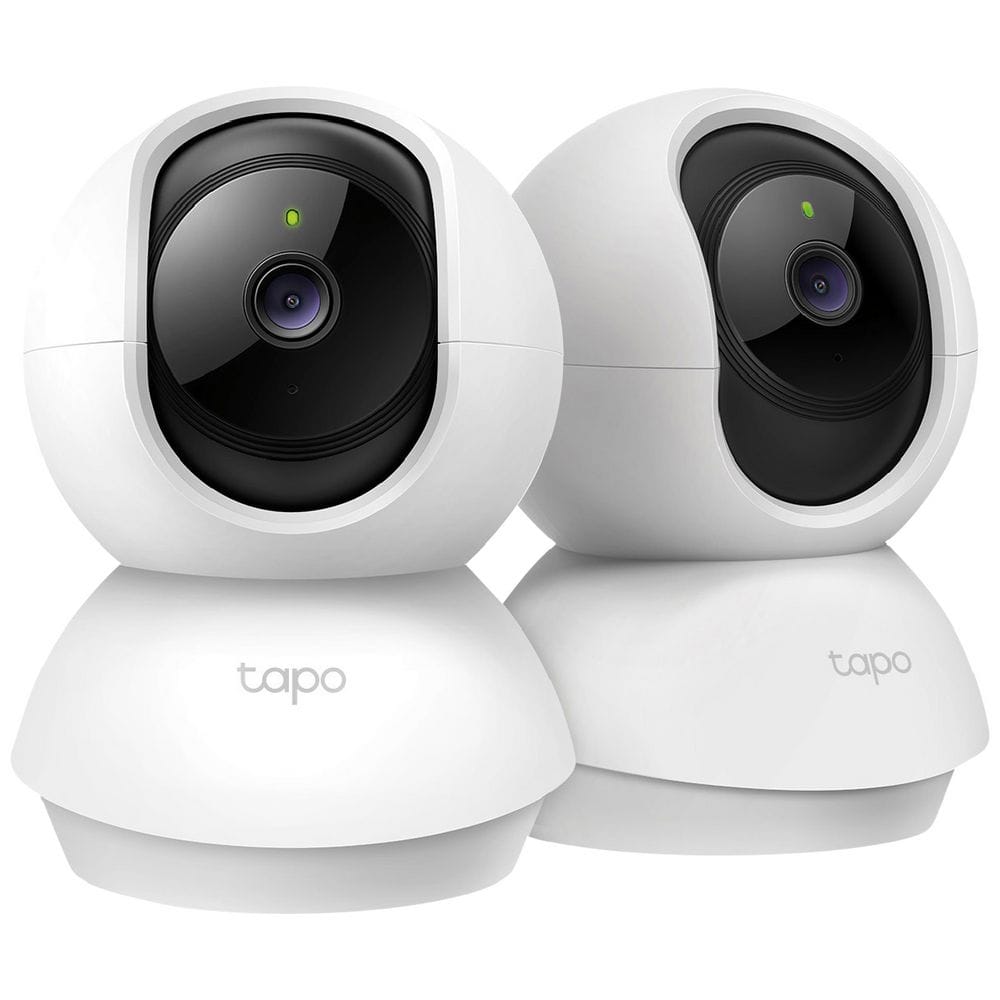
If you own a Tapo CCTV camera, you're probably familiar with the official mobile app. But what if you want to control your camera from a desktop browser, integrate it into your home automation system, or build custom workflows? In this comprehensive guide, I'll show you how to build a beautiful web dashboard for your Tapo camera using Docker, the unofficial tapo-rest API, and a simple HTML/JavaScript frontend.
What You'll Build
By the end of this tutorial, you'll have:
- A REST API server running in Docker to control your Tapo camera
- A modern, responsive web dashboard
- Secure authentication with bearer tokens
- The ability to control your camera from any device on your network
What You'll Need
- A Tapo CCTV camera (C100, C110, C120, C200, C210, C220, TC60, TC65, TC70)
- Docker and Docker Compose installed on your server
- Basic knowledge of Docker and command line
- Your Tapo account credentials
- 15-20 minutes
⚠️ Important Note: The tapo-rest API primarily supports Tapo smart bulbs, plugs, and strips. Camera support is not officially documented, but many users have reported success with common camera models. We'll test compatibility as part of this tutorial.
1. Understanding the Architecture
Before we dive in, let's understand how everything fits together:
┌─────────────┐         ┌──────────────┐         ┌─────────────┐
│   Browser   │ ◄────── │    Nginx     │ ◄────── │  Tapo-REST  │
│  Dashboard  │  HTTP   │ Reverse Proxy│  HTTP   │  API Server │
└─────────────┘         └──────────────┘         └─────────────┘
                                                         │
                                                         │ Tapo Protocol
                                                         ▼
                                                  ┌─────────────┐
                                                  │ Tapo Camera │
                                                  └─────────────┘
Components:
- Tapo-REST API Server: A Rust-based REST API that communicates with your Tapo devices using the unofficial Tapo protocol. It runs in a Docker container and exposes HTTP endpoints.
- Nginx Reverse Proxy: Serves the web dashboard and proxies API requests. This adds an extra layer between your dashboard and the API server.
- Web Dashboard: A single-page application built with vanilla HTML, CSS, and JavaScript. No frameworks needed!
- Your Tapo Camera: Sits on your local network and communicates with the API server.
2. Finding Your Camera's IP Address
First, you need to find your camera's IP address. Here are three methods:
Method 1: Using the Tapo Mobile App
- Open the Tapo app on your phone
- Tap on your camera to open it
- Tap the Settings icon (⚙️) in the top right
- Scroll down to Device Info
- Look for IP Address (e.g.,
192.168.1.100)
Method 2: Using Your Router
- Log into your router's admin panel (usually
192.168.1.1or192.168.0.1) - Look for Connected Devices or DHCP Client List
- Find your camera by its name or MAC address
- Note the IP address
Method 3: Using Network Scanning Tools
# On Linux/Mac
sudo nmap -sn 192.168.1.0/24 | grep -i tapo

# Or use arp-scan
sudo arp-scan --localnet | grep -i tp-link
💡 Pro Tip: Set a static IP for your camera in your router's DHCP settings to prevent the IP from changing.
3. Setting Up the Project
Let's create a proper project structure:
# Create project directory
mkdir tapo-camera-dashboard
cd tapo-camera-dashboard

# Create subdirectories
mkdir -p dashboard config

# Create necessary files
touch docker-compose.yml
touch config/tapo-config.json
touch config/nginx.conf
touch dashboard/index.html
touch .gitignore
touch README.md
Your project structure should look like this:
tapo-camera-dashboard/
├── docker-compose.yml
├── config/
│   ├── tapo-config.json
│   └── nginx.conf
├── dashboard/
│   └── index.html
├── .gitignore
└── README.md
4. Configuring the API Server
Step 4.1: Create the Configuration File
The tapo-rest API requires a JSON configuration file with your Tapo credentials and device information.
Create config/tapo-config.json:
{
    "tapo_credentials": {
        "email": "your-email@example.com",
        "password": "your-tapo-password"
    },
    "server_password": "your-super-secure-api-password",
    "devices": [
        {
            "name": "living-room-camera",
            "device_type": "C200",
            "ip_addr": "192.168.1.100"
        }
    ]
}
Configuration Fields Explained:
tapo_credentials.email: Your Tapo account email (same as mobile app)tapo_credentials.password: Your Tapo account passwordserver_password: A password YOU create for API authentication (make it strong!)devices: Array of your Tapo devicesname: A friendly name (use lowercase, hyphens, no spaces)device_type: Your camera model (C100, C110, C200, C210, etc.)ip_addr: The IP address you found in Step 2
Example with Multiple Cameras:
{
    "tapo_credentials": {
        "email": "your-email@example.com",
        "password": "your-tapo-password"
    },
    "server_password": "MySecurePassword123!",
    "devices": [
        {
            "name": "front-door",
            "device_type": "C200",
            "ip_addr": "192.168.1.100"
        },
        {
            "name": "backyard",
            "device_type": "C210",
            "ip_addr": "192.168.1.101"
        },
        {
            "name": "garage",
            "device_type": "C200",
            "ip_addr": "192.168.1.102"
        }
    ]
}
Step 4.2: Create Docker Compose Configuration
Create docker-compose.yml:
services:
  # Tapo REST API Server
  tapo-rest:
    image: clementnerma/tapo-rest:latest
    container_name: tapo-rest-api
    restart: unless-stopped
    ports:
      - "8000:80"
    volumes:
      - ./config/tapo-config.json:/app/devices.json:ro
    networks:
      - tapo-network
    healthcheck:
      test: ["CMD", "curl", "-f", "http://localhost:80/devices"]
      interval: 30s
      timeout: 10s
      retries: 3
      start_period: 40s

  # Nginx Reverse Proxy
  nginx:
    image: nginx:alpine
    container_name: tapo-nginx
    restart: unless-stopped
    ports:
      - "80:80"
      - "443:443"
    volumes:
      - ./config/nginx.conf:/etc/nginx/nginx.conf:ro
      - ./dashboard:/usr/share/nginx/html:ro
    depends_on:
      - tapo-rest
    networks:
      - tapo-network

networks:
  tapo-network:
    driver: bridge
What's happening here:
- tapo-rest service: Runs the API server on port 8000
- nginx service: Serves your dashboard on port 80 and proxies API calls
- volumes: Mount your config and dashboard files into containers
- networks: Both services communicate on a private bridge network
- healthcheck: Ensures the API server is responding
Step 4.3: Create Nginx Configuration
Create config/nginx.conf:
events {
    worker_connections 1024;
}

http {
    include /etc/nginx/mime.types;
    default_type application/octet-stream;

    # Logging
    access_log /var/log/nginx/access.log;
    error_log /var/log/nginx/error.log;

    # Gzip compression
    gzip on;
    gzip_types text/plain text/css application/json application/javascript;

    # Upstream API server
    upstream tapo-api {
        server tapo-rest:80;
    }

    server {
        listen 80;
        server_name localhost;

        # Security headers
        add_header X-Frame-Options "SAMEORIGIN" always;
        add_header X-Content-Type-Options "nosniff" always;
        add_header X-XSS-Protection "1; mode=block" always;

        # Serve dashboard
        location / {
            root /usr/share/nginx/html;
            index index.html;
            try_files $uri $uri/ /index.html;
        }

        # Proxy API requests
        location /api/ {
            rewrite ^/api/(.*) /$1 break;

            proxy_pass http://tapo-api;
            proxy_http_version 1.1;

            proxy_set_header Host $host;
            proxy_set_header X-Real-IP $remote_addr;
            proxy_set_header X-Forwarded-For $proxy_add_x_forwarded_for;
            proxy_set_header X-Forwarded-Proto $scheme;

            # CORS headers for local development
            add_header Access-Control-Allow-Origin * always;
            add_header Access-Control-Allow-Methods "GET, POST, PUT, DELETE, OPTIONS" always;
            add_header Access-Control-Allow-Headers "Authorization, Content-Type" always;

            # Handle preflight requests
            if ($request_method = OPTIONS) {
                return 204;
            }
        }
    }
}
This configuration:
- Serves your dashboard at
/ - Proxies API requests from
/api/*to the tapo-rest server - Adds security headers
- Enables CORS for local development
- Handles preflight OPTIONS requests
5. Creating the Web Dashboard
Now for the fun part - building the dashboard!
Create dashboard/index.html:
<!DOCTYPE html>
<html lang="en">
<head>
<meta charset="UTF-8">
<meta name="viewport" content="width=device-width, initial-scale=1.0">
<title>Tapo Camera Dashboard</title>
<style>
* {
margin: 0;
padding: 0;
box-sizing: border-box;
}
body {
font-family: -apple-system, BlinkMacSystemFont, 'Segoe UI', Roboto, Oxygen, Ubuntu, Cantarell, sans-serif;
background: linear-gradient(135deg, #667eea 0%, #764ba2 100%);
min-height: 100vh;
padding: 20px;
}
.container {
max-width: 1200px;
margin: 0 auto;
}
.card {
background: white;
border-radius: 20px;
padding: 40px;
box-shadow: 0 20px 60px rgba(0,0,0,0.3);
margin-bottom: 20px;
}
.hidden {
display: none !important;
}
/* Header */
.header {
text-align: center;
margin-bottom: 40px;
}
.header h1 {
font-size: 2.5rem;
color: #333;
margin-bottom: 10px;
}
.header p {
color: #666;
font-size: 1.1rem;
}
/* Login Form */
.input-group {
margin-bottom: 25px;
}
label {
display: block;
margin-bottom: 8px;
color: #555;
font-weight: 600;
font-size: 0.95rem;
}
input {
width: 100%;
padding: 15px;
border: 2px solid #e0e0e0;
border-radius: 10px;
font-size: 1rem;
transition: all 0.3s;
}
input:focus {
outline: none;
border-color: #667eea;
box-shadow: 0 0 0 3px rgba(102, 126, 234, 0.1);
}
button {
width: 100%;
padding: 15px 30px;
background: linear-gradient(135deg, #667eea 0%, #764ba2 100%);
color: white;
border: none;
border-radius: 10px;
font-size: 1.1rem;
font-weight: 600;
cursor: pointer;
transition: all 0.3s;
}
button:hover {
transform: translateY(-2px);
box-shadow: 0 10px 20px rgba(102, 126, 234, 0.3);
}
button:active {
transform: translateY(0);
}
button:disabled {
opacity: 0.6;
cursor: not-allowed;
transform: none;
}
.btn-secondary {
background: linear-gradient(135deg, #f093fb 0%, #f5576c 100%);
}
.btn-small {
width: auto;
padding: 10px 20px;
font-size: 0.9rem;
}
/* Alerts */
.alert {
padding: 15px 20px;
margin-bottom: 20px;
border-radius: 10px;
font-weight: 500;
display: flex;
align-items: center;
gap: 10px;
}
.alert-error {
background: #fee;
color: #c33;
border: 2px solid #fcc;
}
.alert-success {
background: #efe;
color: #3c3;
border: 2px solid #cfc;
}
.alert-info {
background: #e3f2fd;
color: #1976d2;
border: 2px solid #bbdefb;
}
/* Camera Grid */
.camera-grid {
display: grid;
grid-template-columns: repeat(auto-fill, minmax(320px, 1fr));
gap: 25px;
margin: 30px 0;
}
.camera-card {
background: #f8f9fa;
padding: 25px;
border-radius: 15px;
border: 2px solid #e0e0e0;
transition: all 0.3s;
}
.camera-card:hover {
border-color: #667eea;
box-shadow: 0 5px 15px rgba(102, 126, 234, 0.2);
transform: translateY(-5px);
}
.camera-header {
display: flex;
align-items: center;
gap: 12px;
margin-bottom: 20px;
}
.camera-icon {
font-size: 2rem;
}
.camera-info h3 {
font-size: 1.3rem;
color: #333;
margin-bottom: 5px;
}
.camera-info p {
color: #666;
font-size: 0.9rem;
}
.status-indicator {
display: inline-block;
width: 12px;
height: 12px;
border-radius: 50%;
margin-right: 6px;
animation: pulse 2s infinite;
}
.status-online {
background: #4caf50;
box-shadow: 0 0 10px rgba(76, 175, 80, 0.5);
}
.status-offline {
background: #f44336;
animation: none;
}
@keyframes pulse {
0%, 100% { opacity: 1; }
50% { opacity: 0.5; }
}
.control-buttons {
display: grid;
grid-template-columns: repeat(2, 1fr);
gap: 12px;
}
.control-btn {
padding: 12px;
font-size: 0.9rem;
border-radius: 8px;
display: flex;
align-items: center;
justify-content: center;
gap: 8px;
}
/* Stats Section */
.stats-grid {
display: grid;
grid-template-columns: repeat(auto-fit, minmax(200px, 1fr));
gap: 20px;
margin: 30px 0;
}
.stat-card {
background: linear-gradient(135deg, #667eea 0%, #764ba2 100%);
padding: 25px;
border-radius: 15px;
color: white;
text-align: center;
}
.stat-value {
font-size: 2.5rem;
font-weight: 700;
margin-bottom: 5px;
}
.stat-label {
font-size: 0.9rem;
opacity: 0.9;
}
/* Footer */
.footer {
text-align: center;
margin-top: 40px;
padding-top: 20px;
border-top: 2px solid #e0e0e0;
}
.footer-links {
display: flex;
justify-content: center;
gap: 20px;
margin-top: 15px;
}
.footer-links a {
color: #667eea;
text-decoration: none;
font-weight: 500;
}
.footer-links a:hover {
text-decoration: underline;
}
/* Loading Spinner */
.spinner {
display: inline-block;
width: 20px;
height: 20px;
border: 3px solid rgba(255,255,255,0.3);
border-radius: 50%;
border-top-color: white;
animation: spin 0.8s linear infinite;
}
@keyframes spin {
to { transform: rotate(360deg); }
}
/* Responsive */
@media (max-width: 768px) {
.header h1 {
font-size: 2rem;
}
.camera-grid {
grid-template-columns: 1fr;
}
.card {
padding: 25px;
}
}
</style>
</head>
<body>
<div class="container">
<!-- Login Card -->
<div id="loginCard" class="card">
<div class="header">
<h1>🎥 Tapo Camera Dashboard</h1>
<p>Secure access to your Tapo cameras</p>
</div>
<div id="loginAlert" class="alert alert-error hidden"></div>
<div class="input-group">
<label for="apiUrl">API Server URL</label>
<input
type="text"
id="apiUrl"
value="http://localhost:8000"
placeholder="http://localhost:8000"
>
<small style="color: #666; margin-top: 5px; display: block;">
Change this if your server is on a different machine
</small>
</div>
<div class="input-group">
<label for="password">Server Password</label>
<input
type="password"
id="password"
placeholder="Enter your server password"
onkeypress="if(event.key==='Enter') login()"
>
</div>
<button id="loginBtn" onclick="login()">
<span id="loginBtnText">Login</span>
</button>
</div>
<!-- Dashboard Card -->
<div id="dashboardCard" class="card hidden">
<div class="header">
<h1>📹 Camera Control Center</h1>
<p>Manage your Tapo cameras</p>
</div>
<div id="dashboardAlert" class="alert hidden"></div>
<!-- Stats -->
<div class="stats-grid">
<div class="stat-card">
<div class="stat-value" id="totalCameras">0</div>
<div class="stat-label">Total Cameras</div>
</div>
<div class="stat-card">
<div class="stat-value" id="onlineCameras">0</div>
<div class="stat-label">Online</div>
</div>
<div class="stat-card">
<div class="stat-value" id="offlineCameras">0</div>
<div class="stat-label">Offline</div>
</div>
</div>
<!-- Camera Grid -->
<div class="camera-grid" id="cameraGrid">
<!-- Cameras will be loaded here dynamically -->
</div>
<!-- Actions Section -->
<div style="margin-top: 30px; padding: 25px; background: #f8f9fa; border-radius: 15px;">
<h3 style="margin-bottom: 15px; color: #333;">🛠️ System Actions</h3>
<div style="display: grid; grid-template-columns: repeat(auto-fit, minmax(200px, 1fr)); gap: 12px;">
<button class="btn-small" onclick="refreshAllSessions()">
🔄 Refresh All Sessions
</button>
<button class="btn-small" onclick="fetchActions()">
📋 View Available Actions
</button>
<button class="btn-small btn-secondary" onclick="logout()">
🚪 Logout
</button>
</div>
</div>
<!-- Footer -->
<div class="footer">
<p style="color: #666;">Built with ❤️ using Docker & Tapo-REST API</p>
<div class="footer-links">
<a href="https://github.com/ClementNerma/tapo-rest" target="_blank">📚 Documentation</a>
<a href="#" onclick="showHelp(); return false;">❓ Help</a>
<a href="https://github.com" target="_blank">💻 GitHub</a>
</div>
</div>
</div>
</div>
<script>
// Configuration
let sessionToken = localStorage.getItem('tapoSessionToken');
let apiUrl = localStorage.getItem('tapoApiUrl') || 'http://localhost:8000';
// Initialize
if (sessionToken) {
document.getElementById('apiUrl').value = apiUrl;
loadDashboard();
}
// Login Function
async function login() {
const password = document.getElementById('password').value;
apiUrl = document.getElementById('apiUrl').value.replace(/\/$/, ''); // Remove trailing slash
const loginBtn = document.getElementById('loginBtn');
const loginBtnText = document.getElementById('loginBtnText');
if (!password) {
showAlert('loginAlert', '⚠️ Please enter your password', 'error');
return;
}
loginBtn.disabled = true;
loginBtnText.innerHTML = '<span class="spinner"></span> Logging in...';
try {
const response = await fetch(`${apiUrl}/login`, {
method: 'POST',
headers: {
'Content-Type': 'application/json'
},
body: JSON.stringify({ password })
});
if (!response.ok) {
if (response.status === 401) {
throw new Error('Invalid password');
} else if (response.status === 404) {
throw new Error('API server not found. Check your URL.');
} else {
throw new Error(`Server error: ${response.status}`);
}
}
sessionToken = await response.text();
localStorage.setItem('tapoSessionToken', sessionToken);
localStorage.setItem('tapoApiUrl', apiUrl);
showAlert('loginAlert', '✅ Login successful!', 'success');
setTimeout(() => {
loadDashboard();
}, 500);
} catch (error) {
console.error('Login error:', error);
showAlert('loginAlert', `❌ ${error.message}`, 'error');
} finally {
loginBtn.disabled = false;
loginBtnText.textContent = 'Login';
}
}
// Load Dashboard
async function loadDashboard() {
document.getElementById('loginCard').classList.add('hidden');
document.getElementById('dashboardCard').classList.remove('hidden');
showAlert('dashboardAlert', '🔄 Loading cameras...', 'info');
try {
const response = await fetch(`${apiUrl}/devices`, {
headers: {
'Authorization': `Bearer ${sessionToken}`
}
});
if (!response.ok) {
if (response.status === 401) {
throw new Error('Session expired. Please login again.');
}
throw new Error('Failed to fetch devices');
}
const devices = await response.json();
if (devices.length === 0) {
showAlert('dashboardAlert', '⚠️ No devices configured', 'error');
} else {
renderCameras(devices);
updateStats(devices);
hideAlert('dashboardAlert');
}
} catch (error) {
console.error('Dashboard error:', error);
showAlert('dashboardAlert', `❌ ${error.message}`, 'error');
if (error.message.includes('Session expired')) {
setTimeout(logout, 2000);
}
}
}
// Render Cameras
function renderCameras(devices) {
const grid = document.getElementById('cameraGrid');
grid.innerHTML = '';
devices.forEach((device, index) => {
const card = document.createElement('div');
card.className = 'camera-card';
card.innerHTML = `
<div class="camera-header">
<div class="camera-icon">📹</div>
<div class="camera-info">
<h3>
<span class="status-indicator status-online"></span>
${device.name || `Camera ${index + 1}`}
</h3>
<p>${device.device_type || 'Unknown Model'} • ${device.ip_addr || 'No IP'}</p>
</div>
</div>
<div class="control-buttons">
<button class="control-btn" onclick="refreshSession('${device.name}')">
🔄 Refresh
</button>
<button class="control-btn" onclick="getDeviceInfo('${device.name}')">
ℹ️ Info
</button>
<button class="control-btn" onclick="testCamera('${device.name}')">
🧪 Test
</button>
<button class="control-btn btn-secondary" onclick="viewActions('${device.name}')">
⚙️ Actions
</button>
</div>
`;
grid.appendChild(card);
});
}
// Update Statistics
function updateStats(devices) {
document.getElementById('totalCameras').textContent = devices.length;
document.getElementById('onlineCameras').textContent = devices.length; // Assume all online for now
document.getElementById('offlineCameras').textContent = 0;
}
// Refresh Session
async function refreshSession(deviceName) {
showAlert('dashboardAlert', `🔄 Refreshing session for ${deviceName}...`, 'info');
try {
const response = await fetch(`${apiUrl}/refresh-session?device=${deviceName}`, {
method: 'POST',
headers: {
'Authorization': `Bearer ${sessionToken}`
}
});
if (response.ok) {
showAlert('dashboardAlert', `✅ Session refreshed for ${deviceName}`, 'success');
} else {
throw new Error('Failed to refresh session');
}
} catch (error) {
console.error('Refresh error:', error);
showAlert('dashboardAlert', `❌ ${error.message}`, 'error');
}
}
// Refresh All Sessions
async function refreshAllSessions() {
showAlert('dashboardAlert', '🔄 Refreshing all sessions...', 'info');
try {
const response = await fetch(`${apiUrl}/devices`, {
headers: {
'Authorization': `Bearer ${sessionToken}`
}
});
if (!response.ok) throw new Error('Failed to fetch devices');
const devices = await response.json();
let successCount = 0;
for (const device of devices) {
try {
const refreshResponse = await fetch(`${apiUrl}/refresh-session?device=${device.name}`, {
method: 'POST',
headers: {
'Authorization': `Bearer ${sessionToken}`
}
});
if (refreshResponse.ok) successCount++;
} catch (e) {
console.error(`Failed to refresh ${device.name}:`, e);
}
}
showAlert('dashboardAlert', `✅ Refreshed ${successCount}/${devices.length} sessions`, 'success');
} catch (error) {
console.error('Refresh all error:', error);
showAlert('dashboardAlert', `❌ ${error.message}`, 'error');
}
}
// Get Device Info
async function getDeviceInfo(deviceName) {
showAlert('dashboardAlert', `ℹ️ Fetching info for ${deviceName}...`, 'info');
try {
const response = await fetch(`${apiUrl}/actions?device=${deviceName}`, {
headers: {
'Authorization': `Bearer ${sessionToken}`
}
});
if (response.ok) {
const data = await response.json();
console.log(`Device info for ${deviceName}:`, data);
showAlert('dashboardAlert', `✅ Device info logged to console (F12)`, 'success');
} else {
throw new Error('Failed to get device info');
}
} catch (error) {
console.error('Device info error:', error);
showAlert('dashboardAlert', `❌ ${error.message}`, 'error');
}
}
// Test Camera
async function testCamera(deviceName) {
showAlert('dashboardAlert', `🧪 Testing ${deviceName}...`, 'info');
try {
// Try to get device actions to test connectivity
const response = await fetch(`${apiUrl}/actions?device=${deviceName}`, {
headers: {
'Authorization': `Bearer ${sessionToken}`
}
});
if (response.ok) {
const actions = await response.json();
showAlert('dashboardAlert',
`✅ ${deviceName} is responsive! Found ${Object.keys(actions).length} action categories.`,
'success');
} else {
throw new Error(`Camera not responding (Status: ${response.status})`);
}
} catch (error) {
console.error('Test error:', error);
showAlert('dashboardAlert', `❌ ${error.message}`, 'error');
}
}
// View Actions
async function viewActions(deviceName) {
showAlert('dashboardAlert', `📋 Loading actions for ${deviceName}...`, 'info');
try {
const response = await fetch(`${apiUrl}/actions?device=${deviceName}`, {
headers: {
'Authorization': `Bearer ${sessionToken}`
}
});
if (response.ok) {
const actions = await response.json();
console.log(`Available actions for ${deviceName}:`, actions);
const actionCount = Object.keys(actions).length;
const actionList = Object.keys(actions).join(', ');
alert(`Actions for ${deviceName}:\n\n${actionList}\n\nTotal: ${actionCount} categories\n\nCheck console (F12) for details.`);
showAlert('dashboardAlert', '✅ Actions listed in console', 'success');
} else {
throw new Error('Failed to fetch actions');
}
} catch (error) {
console.error('Actions error:', error);
showAlert('dashboardAlert', `❌ ${error.message}`, 'error');
}
}
// Fetch All Available Actions
async function fetchActions() {
showAlert('dashboardAlert', '📋 Fetching all available actions...', 'info');
try {
const response = await fetch(`${apiUrl}/actions`, {
headers: {
'Authorization': `Bearer ${sessionToken}`
}
});
if (response.ok) {
const actions = await response.json();
console.log('All available actions:', actions);
alert('Complete actions list has been logged to console.\n\nPress F12 to open Developer Tools and view the console.');
showAlert('dashboardAlert', '✅ Actions logged to console', 'success');
} else {
throw new Error('Failed to fetch actions');
}
} catch (error) {
console.error('Fetch actions error:', error);
showAlert('dashboardAlert', `❌ ${error.message}`, 'error');
}
}
// Logout
function logout() {
sessionToken = null;
localStorage.removeItem('tapoSessionToken');
document.getElementById('dashboardCard').classList.add('hidden');
document.getElementById('loginCard').classList.remove('hidden');
document.getElementById('password').value = '';
hideAlert('loginAlert');
hideAlert('dashboardAlert');
}
// Show Alert
function showAlert(elementId, message, type) {
const alert = document.getElementById(elementId);
const icon = type === 'error' ? '❌' : type === 'success' ? '✅' : 'ℹ️';
alert.innerHTML = `${icon} ${message}`;
alert.className = `alert alert-${type}`;
alert.classList.remove('hidden');
}
// Hide Alert
function hideAlert(elementId) {
const alert = document.getElementById(elementId);
alert.classList.add('hidden');
}
// Show Help
function showHelp() {
alert(`Tapo Camera Dashboard Help
🔐 Login:
- Enter your API server URL (default: http://localhost:8000)
- Use the server password from your config file
🎥 Camera Controls:
- Refresh: Renew the session with the camera
- Info: View device details in console
- Test: Check if camera is responding
- Actions: See available API endpoints
🛠️ System Actions:
- Refresh All: Update all camera sessions
- View Actions: See all available API endpoints
- Logout: End your session
📱 Tips:
- Press F12 to open Developer Console for detailed logs
- If session expires, click Refresh or re-login
- Check console for error messages
Need more help? Visit:
https://github.com/ClementNerma/tapo-rest`);
}
// Auto-hide success/info alerts after 5 seconds
setInterval(() => {
document.querySelectorAll('.alert-success, .alert-info').forEach(alert => {
if (!alert.classList.contains('hidden')) {
setTimeout(() => {
alert.classList.add('hidden');
}, 5000);
}
});
}, 1000);
</script>
</body>
</html>
6. Deploying with Docker
Now let's bring everything online!
Step 6.1: Validate Your Configuration
Before starting, double-check your config/tapo-config.json:
# Check if file exists and is valid JSON
cat config/tapo-config.json | jq .

# If you don't have jq, install it:
# Ubuntu/Debian: sudo apt install jq
# Mac: brew install jq
Step 6.2: Start the Services
# Pull the latest images
docker-compose pull

# Start services in detached mode
docker-compose up -d

# Watch the logs
docker-compose logs -f
You should see output similar to:
tapo-rest-api    | Starting Tapo REST API server...
tapo-rest-api    | Loading configuration from /app/devices.json
tapo-rest-api    | Connecting to device: living-room-camera (C200) at 192.168.1.100
tapo-rest-api    | ✓ Successfully connected to living-room-camera
tapo-rest-api    | Server listening on 0.0.0.0:80
tapo-nginx       | Nginx is running
Step 6.3: Verify Services Are Running
# Check service status
docker-compose ps

# Should show:
# NAME                STATUS              PORTS
# tapo-rest-api       Up 30 seconds       0.0.0.0:8000->80/tcp
# tapo-nginx          Up 30 seconds       0.0.0.0:80->80/tcp
Step 6.4: Access the Dashboard
Open your browser and navigate to:
- From the same machine:
http://localhost - From another device:
http://YOUR_SERVER_IP
You should see the login screen!
7. Testing and Troubleshooting
Test 1: API Server Health Check
# Test if API is responding
curl http://localhost:8000/devices

# You should get: 401 Unauthorized (this is correct - you need to login first)
Test 2: Login via API
# Login to get session token
curl -X POST -H 'Content-Type: application/json' \
  --data '{"password":"your-server-password"}' \
  http://localhost:8000/login

# Save the returned token
TOKEN="<paste-token-here>"

# Test authenticated request
curl -H "Authorization: Bearer $TOKEN" \
  http://localhost:8000/devices
Test 3: Check Available Actions
# List all actions
curl -H "Authorization: Bearer $TOKEN" \
  http://localhost:8000/actions

# Check actions for specific device
curl -H "Authorization: Bearer $TOKEN" \
  "http://localhost:8000/actions?device=living-room-camera"
RTSP Stream Access
Most Tapo cameras support RTSP (Real-Time Streaming Protocol).
Find RTSP URL:
- Open Tapo app
- Go to Camera Settings → Advanced Settings
- Enable "RTSP"
- Note the username and password
RTSP URL format:
rtsp://username:password@camera-ip:554/stream1
View in VLC:
vlc rtsp://admin:camera-password@192.168.1.100:554/stream1
Frigate NVR
Frigate is an open-source NVR with AI object detection.
Quick Setup:
services:
  frigate:
    container_name: frigate
    privileged: true
    restart: unless-stopped
    image: ghcr.io/blakeblackshear/frigate:stable
    volumes:
      - ./config:/config
      - /etc/localtime:/etc/localtime:ro
      - type: tmpfs
        target: /tmp/cache
        tmpfs:
          size: 1000000000
    ports:
      - "5000:5000"
      - "8554:8554"
Frigate config (config/config.yml):
cameras:
  front_door:
    ffmpeg:
      inputs:
        - path: rtsp://admin:password@192.168.1.100:554/stream1
          roles:
            - detect
            - record
    detect:
      width: 1920
      height: 1080
Home Assistant
Home Assistant has official Tapo integration.
Install:
docker run -d \
  --name homeassistant \
  --restart=unless-stopped \
  -v /PATH_TO_CONFIG:/config \
  -v /etc/localtime:/etc/localtime:ro \
  --network=host \
  ghcr.io/home-assistant/home-assistant:stable
Then add Tapo integration via UI: Configuration → Integrations → Add Integration → Tapo
Option 4: MotionEye
Simple NVR for basic camera management.
docker run -d \
  --name motioneye \
  -p 8765:8765 \
  -v /etc/localtime:/etc/localtime:ro \
  -v /path/to/config:/etc/motioneye \
  -v /path/to/media:/var/lib/motioneye \
  --restart always \
  ccrisan/motioneye:master-amd64
Advanced Features
Adding Authentication Persistence
Modify the dashboard to remember sessions across browser restarts:
// Add session expiry check
function isSessionValid() {
    const sessionTime = localStorage.getItem('tapoSessionTime');
    if (!sessionTime) return false;

    const now = Date.now();
    const elapsed = now - parseInt(sessionTime);
    const THIRTY_DAYS = 30 * 24 * 60 * 60 * 1000;

    return elapsed < THIRTY_DAYS;
}
Monitoring with Prometheus
Add Prometheus metrics to track API performance:
# docker-compose.yml
  prometheus:
    image: prom/prometheus
    volumes:
      - ./prometheus.yml:/etc/prometheus/prometheus.yml
    ports:
      - "9090:9090"
Backup Configuration
#!/bin/bash
# backup.sh

BACKUP_DIR="backups"
DATE=$(date +%Y%m%d_%H%M%S)

mkdir -p $BACKUP_DIR

# Backup configuration
tar -czf "$BACKUP_DIR/tapo-config-$DATE.tar.gz" \
  config/ \
  dashboard/ \
  docker-compose.yml

echo "Backup created: $BACKUP_DIR/tapo-config-$DATE.tar.gz"
Conclusion
Congratulations! You've successfully built a web dashboard for your Tapo cameras. While camera support in tapo-rest may be limited, you now have:
- A working API server infrastructure
- A beautiful web interface
- Docker-based deployment
- Security best practices
- Alternative solutions if needed