Getting Started with Docker Cloud Sandboxes

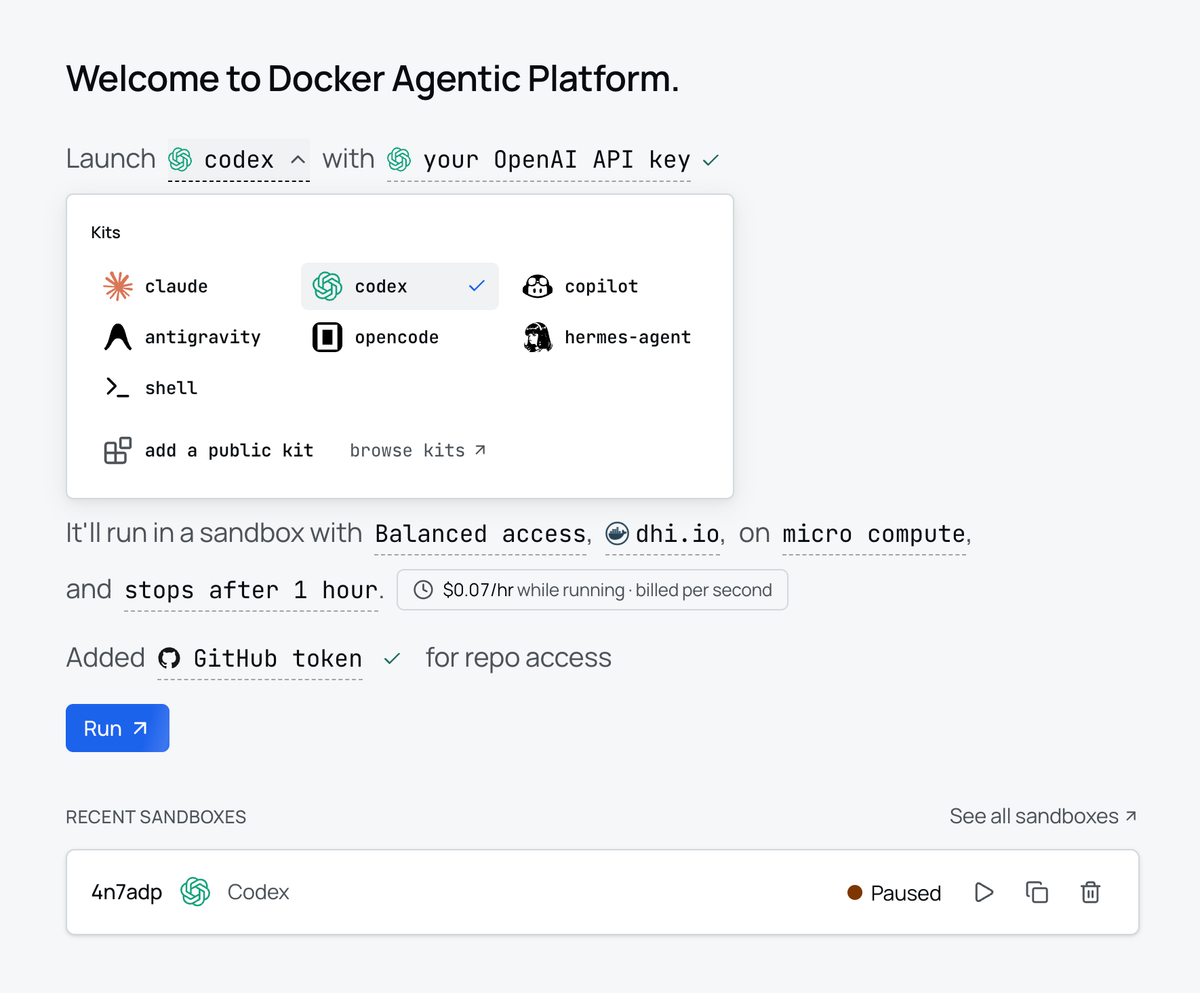
AI coding agents now run for a long time. A single task can take hours: a refactor, a full test run, a migration. The question is no longer whether the model can finish the work, but where that work should run.
Your laptop is fine for the first few minutes, when you want to watch the agent and step in if it goes wrong. It's a poor place to leave a job running for hours, and a worse one for running many agents at once.
Docker Sandboxes answer both ends of that spectrum with the same isolation model and a single command to move between them. In this post we start an agent locally, run real code in it, and then - without changing how it runs - promote that exact sandbox into the cloud. Start on your laptop. Finish in the cloud.
What you'll need
sbxCLI, v0.45.0 or later- A Docker Agentic Platform subscription for the cloud half (new accounts get free credit to start)
- An agent credential - we'll use Anthropic for Claude Code
The Docker Agentic Platform
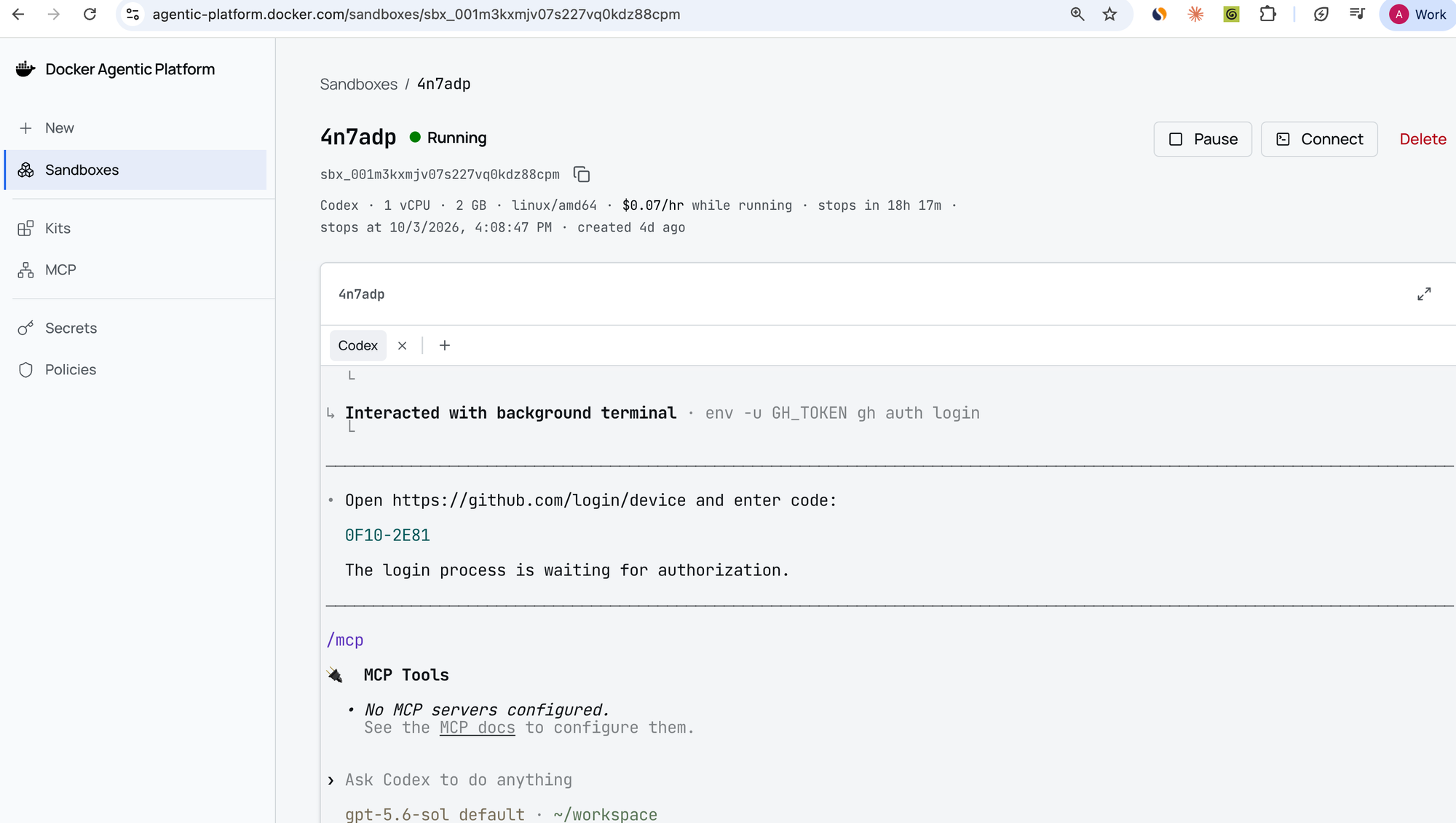
Cloud Sandboxes aren't a standalone gadget - they're the runtime layer of the Docker Agentic Platform, Docker's platform for configuring, connecting, running, and controlling AI agents in one place. The pieces that matter here:
| Component | Role |
|---|---|
Docker Sandboxes (sbx) | Isolated microVM environments where agents actually run - local on your laptop |
| Cloud Sandboxes | The same sandboxes, running on Docker-managed cloud infrastructure |
| MCP Catalog & Enterprise Gateway | Connect MCP tools (Jira, Linear, Grafana, …) once; expose them to agents, with governance |
| Docker Model Runner | Local-first LLM inference |
| Gordon | Docker's built-in AI agent |
| AI Governance | Policy and control over agents across teams |
The throughline is that sandboxes are the execution substrate for the whole
platform, and the same isolation model runs whether a sandbox lives on your laptop or in Docker's cloud. That's the bit to keep in mind as we go: moving to the cloud doesn't swap you onto a different, less-safe runtime - it's the identical sandbox, hosted.
What a sandbox actually is
A Docker Sandbox is an isolated microVM that an AI agent runs inside. It has its own Linux kernel, its own filesystem, its own Docker daemon, and all of its network traffic flows through a host-managed proxy. The agent gets sudo inside the box - but the box can't see your host, your processes, or your credentials.
| Layer | What it isolates |
|---|---|
| Hypervisor | Separate Linux kernel per sandbox; the agent's processes are invisible to the host |
| Network proxy | All HTTP/HTTPS flows through a proxy; no raw TCP/UDP/ICMP; DNS is mediated |
| Docker Engine | An isolated Docker daemon per sandbox - no access to your host Docker |
| Credentials | The proxy injects auth headers per request; raw API keys never enter the VM |
Cloud Sandboxes are the same four layers on Docker-managed remote infrastructure, with their own credentials, network policies, and lifecycle controls (TTL, hibernation, persistent volumes) - independent of your laptop.
Part 1 - Start local
Step 1: Install and check the version
brew install docker/tap/sbx     # macOS - Docker Desktop NOT required
# winget install -h Docker.sbx  # Windows
Confirm you're on 0.45.0+ (real output):
$ sbx version
sbx version: v0.45.1 9d79d90ee4c5d297fb3d36b75384e8cea7a4fbcb
Step 2: Sign in
sbx login
This opens your browser for Docker OAuth. On first login you also pick a default
network policy:
| Policy | Behavior |
|---|---|
| Open | All outbound traffic allowed |
| Balanced (recommended) | Deny-by-default + common dev sites pre-allowed |
| Locked Down | Everything blocked unless you explicitly allow it |
Step 3: Store your agent credential
The proxy injects this into outbound requests - the raw value never lands inside the sandbox:
sbx secret set -g anthropic # paste your Anthropic API key when prompted
-g makes it global (available to every sandbox). Confirm it's stored without ever revealing the value:
$ sbx secret ls
SCOPE        TYPE      NAME        SECRET
(global)     service   anthropic   (stored)
💡 Note: global secrets are read at sandbox creation time. Change one, and
you need to recreate the sandbox for it to take effect.
Step 4: Create a sandbox and run a real, long-ish job in it
The demo for this post is the kind of task you'd want to walk away from - a job that
churns through a batch of work and takes a while. Here's worker.py: pass --full and it's the "overnight" run; otherwise it's a quick smoke test. It writes progress and a result file as it goes:
$ cat worker.py
#!/usr/bin/env python3
"""A deliberately long-running job: the kind of task you start on your laptop
and would rather not babysit."""
import sys, time
from datetime import datetime

FULL = "--full" in sys.argv
N = 20 if FULL else 3          # --full is the "overnight" run; default is a quick smoke test
STEP = 1.5 if FULL else 0.3

RESULT = "/home/agent/result.txt"
start = time.time()
with open(RESULT, "w") as f:
    for i in range(1, N + 1):
        time.sleep(STEP)
        line = f"[{datetime.now():%H:%M:%S}] processed item {i}/{N}"
        print(line, flush=True)
        f.write(line + "\n"); f.flush()
    print(f"DONE: {N} items in {time.time() - start:.1f}s", flush=True)
open("/home/agent/DONE", "w").close()   # sentinel so a watcher knows we finished
Create a sandbox with Claude Code, mounting that project (real output - note the microVM gets its own CPU/memory allocation and pulls the agent image):
$ sbx create claude ~/laptop-to-cloud-demo --name laptop-to-cloud-demo
── RESOLVE SETUP
   resolving configuration…
     sandbox    laptop-to-cloud-demo
     agent      claude
     workspace  /Users/you/laptop-to-cloud-demo (rw)
     skills     …/agent-skills → /home/agent/.claude/skills · 5 folders · (ro)
     image      docker/sandbox-templates:claude-code-docker
     cpu        18
     memory     18 GiB
   ✓ configuration resolved
── PREPARE IMAGE
   → pull docker/sandbox-templates:claude-code-docker
   ✓ image ready
── CREATE SANDBOX
   ✓ Created sandbox laptop-to-cloud-demo

To connect to this sandbox, run:
  sbx run --name laptop-to-cloud-demo
💡 run vs create: sbx run claude (no path) mounts your current directory
and attaches you interactively in one step. sbx create runs in the background and
does not default to the cwd - pass the workspace path explicitly, as above.
Confirm it's live (real output):
$ sbx ls
SANDBOX                AGENT     STATUS    PORTS   WORKSPACE
laptop-to-cloud-demo            claude          running           /Users/ajeetraina/laptop-to-cloud-demo
Now develop on the laptop the way you normally would: run a quick smoke test of the job inside the microVM (real output):
$ sbx exec laptop-to-cloud-demo bash -lc 'python3 worker.py'
[02:33:08] processed item 1/3
[02:33:08] processed item 2/3
[02:33:09] processed item 3/3
DONE: 3 items in 0.9s
It works. The full --full run would take far longer - exactly the kind of thing you
don't want to babysit on your laptop. Before we hand it off, stage the job into the sandbox's image filesystem so it survives the move (the next section explains why themounted workspace alone won't):
$ sbx exec laptop-to-cloud-demo bash -lc 'cp worker.py /home/agent/worker.py && ls -l /home/agent/worker.py'
-rw-r--r-- 1 agent agent 862 Oct  3 03:03 /home/agent/worker.py
This is what the laptop is good at: watching, steering, a fast iteration loop. Now that the long run is ready, we move it up and let it finish without us.
Part 2 - Finish in the cloud
Step 0: Activate Docker Agentic Platform / cloud access
Follow the Signup and billing guide to activate your Docker Agentic Platform
subscription and review compute charges. New accounts get free credit to start.
Pay-as-you-go, billed per second, by sandbox size:
| Size | vCPUs | Memory | Per hour |
|---|---|---|---|
| Micro | 1 | 2 GiB | $0.07 |
| Small (default) | 2 | 4 GiB | $0.14 |
| Medium | 4 | 8 GiB | $0.28 |
| Large | 8 | 16 GiB | $0.56 |
| XL | 16 | 32 GiB | $1.12 |
Move the running sandbox to the cloud
The one-liner the whole post builds toward. Here is the real, unedited output of
moving our sandbox up - read the warnings, they matter:
$ sbx move laptop-to-cloud-demo --to cloud --name laptop-to-cloud-demo --ttl 30m --force
warning: Secrets managed by sbx are not copied. The destination may use its own secrets; you may need to sign in again.
warning: Credentials saved in copied files can still travel with the sandbox.
warning: Local network policies are not copied. The destination uses cloud network policies.
warning: sandbox "laptop-to-cloud-demo" uses files outside its container filesystem. These files won't be copied to the cloud:
  "/Users/you/laptop-to-cloud-demo" (workspace, host bind mount)
→ move sandbox laptop-to-cloud-demo to cloud
Using cloud shape small (2 vCPU / 4096 MiB).
Pushing sandbox laptop-to-cloud-demo to cloud ...
Upload complete.
✓ move sandbox laptop-to-cloud-demo to cloud (41s)
✓ Moved to cloud sandbox laptop-to-cloud-demo (sbx_001m3zsrjd2pxfxt5fh5k9z0vrs)
  Attach with:  sbx --cloud run sbx_001m3zsrjd2pxfxt5fh5k9z0vrs
  Created cloud template tmpl_001m3zsqt39yxnwtwr8ksx3qxka to back it; remove it with
  `sbx --cloud template rm tmpl_001m3zsqt39yxnwtwr8ksx3qxka` once the sandbox is deleted.
  Expires in 29m; the sandbox will then be stopped (it can be started again later).
What just happened: sbx move captured the sandbox's filesystem as a container image and started a fresh cloud sandbox from it. --ttl 30m capped its life at 30 minutes; when the TTL lapses it stops in place (hibernates) so you can resume later, rather than being deleted. Neither side is destroyed - the move just stops the local source; restart it any time with sbx run --name laptop-to-cloud-demo.
⚠️ Quick Note
Look again at that warning:
warning: sandbox uses files outside its container filesystem. These files won't be copied to the cloud:
  "/Users/you/laptop-to-cloud-demo" (workspace, host bind mount)
Your mounted workspace is a host bind mount, and bind mounts don't travel. What travels is the sandbox's own image filesystem (e.g. anything under /home/agent) - which is exactly why we staged worker.py there in Step 4. Here's the proof, live, in the cloud sandbox after the move:
$ sbx --cloud exec laptop-to-cloud-demo bash -lc \
    'echo "staged job (image fs):"; ls -l /home/agent/worker.py; \
     echo "workspace (bind mount):"; ls -la ~/laptop-to-cloud-demo'
staged job (image fs):
-rw-r--r--+ 1 agent agent 862 Oct  3 02:33 /home/agent/worker.py    # ← TRAVELED
workspace (bind mount):
total 8
drwxr-xr-x+  2 root  root   27 Oct  3 02:33 .                       # ← arrived EMPTY
drwxr-xr-x+  4 agent agent 110 Oct  3 02:33 ..
The staged job came across; the mounted workspace arrived empty. So the practical rule for "finish in the cloud":
- Stage what the cloud run needs into the image filesystem (e.g.
/home/agent) before you move - as we did withworker.py. - Or commit and push from inside the sandbox (its injected GitHub token works), which is the cleanest way to get work off any sandbox.
- Or pull files back with
sbx cpwhen you move the sandbox back down.
This is the single most important thing to understand before you trust an overnight run.
Confirm it's running in the cloud
The --cloud global flag dispatches a supported verb to the hosted service. Real output:
$ sbx --cloud ls
SANDBOX                       AGENT    ID                                STATUS    PORTS   WORKSPACE
claude/laptop-to-cloud-demo   claude   sbx_001m3zsrjd2pxfxt5fh5k9z0vrs   running           -
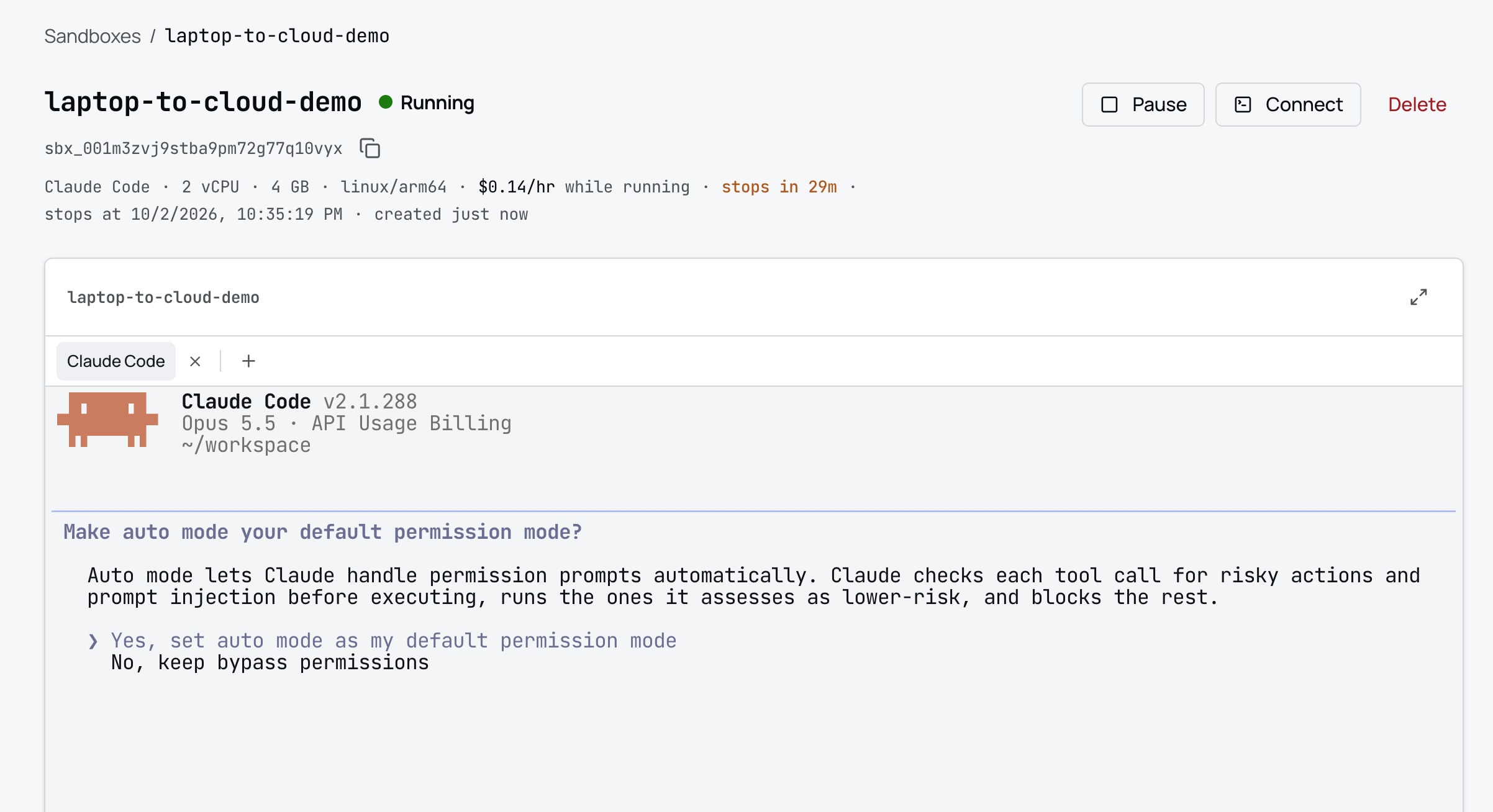
The payoff: kick off the long run, then close the laptop
This is the whole point of the post, made visible. Launch the --full job in the
background in the cloud (one caveat the move output hinted at: running processes don't travel - so you start the long job after you land in the cloud, not before):
$ sbx --cloud exec laptop-to-cloud-demo bash -lc \
    'nohup python3 /home/agent/worker.py --full > /home/agent/run.log 2>&1 & echo "pid $!"'
pid 1941
Peek once while the lid's still open - it's genuinely running, with nothing attached:
$ sbx --cloud exec laptop-to-cloud-demo bash -lc 'cat /home/agent/run.log'
[02:34:20] processed item 1/20
[02:34:21] processed item 2/20
[02:34:23] processed item 3/20
Now close your laptop. Come back later, reconnect, and the work finished on its own in the cloud:
$ sbx --cloud exec laptop-to-cloud-demo bash -lc 'tail -1 /home/agent/result.txt'
DONE: 20 items in 30.0s
Started on the laptop, finished in the cloud - no VM to provision, no lid to keep open.
Working with a cloud sandbox
Everything has a --cloud form:
sbx --cloud run sbx_001m3zsrjd2pxfxt5fh5k9z0vrs      # attach (starts it if stopped)
sbx --cloud exec laptop-to-cloud-demo bash -lc '...' # run a command inside it
sbx --cloud ttl laptop-to-cloud-demo                 # check / extend remaining lifetime
sbx cp laptop-to-cloud-demo:/home/agent/result.txt . # copy results back down
sbx move laptop-to-cloud-demo --to local             # bring the whole sandbox back
Clean up
Billing is per-second, so tear down when done. Real output from this session's cleanup:
$ sbx --cloud rm laptop-to-cloud-demo -f
   ✓ remove sandbox laptop-to-cloud-demo (1s)
$ sbx --cloud template rm tmpl_001m3zsqt39yxnwtwr8ksx3qxka --force
Removed: moved-laptop-to-cloud-demo-7513a8b6 (tmpl_001m3zsqt39yxnwtwr8ksx3qxka)
Or: start fresh in the cloud
You don't have to start local. For the "run 100 agents in parallel" case, launch straight into the cloud:
sbx --cloud run claude
sbx --cloud run codex
Cloud mode supports a growing set of verbs - run, create, attach, exec, cp,ls, move, stop, rm, ttl, plus cloud-only persistent volumes (sbx volume).
Run sbx --cloud --help for the current list.
Part 3 - Go programmatic with the Sandboxes API & SDK
The CLI is the fast path, but everything above is also in the Docker Sandboxes API and SDK - which is where the "100 parallel agents" story gets real. The API lets you:
- Create sandboxes and run commands inside them
- Transfer files in and out
- Manage images, snapshots, volumes, and secrets as first-class resources
That makes cloud sandboxes a natural fit for CI and fan-out jobs: spin up N sandboxes from a known image, dispatch a task to each, collect results, tear them down - no VM provisioning in sight. See the API docs for the current SDK surface.
Local vs Cloud, at a glance
| Local Sandbox | Cloud Sandbox | |
|---|---|---|
| Runs on | Your laptop (microVM) | Docker-managed infra (microVM) |
| Isolation model | Hypervisor + proxy + isolated Docker + credential injection | Identical |
| Best for | Interactive iteration, steering, quick jobs | Long-horizon work, overnight runs, scale |
| Credentials | Host keychain, injected by proxy | Its own - sign in on the destination |
| Network policy | Local default (Open / Balanced / Locked Down) | Its own cloud policy |
| Workspace | Host bind mount (live) | Does not travel on move - use image fs / sbx cp / git |
| Lifecycle | Runs while your machine is on | TTL, hibernation, persistent volumes |
| Needs local virtualization? | Yes | No |
| Cost | Your hardware | Pay-as-you-go by size, per second |
Wrapping up
It isn't "local sandboxes" or "cloud sandboxes." It's the same sandbox, part of the Docker Agentic Platform, and you choose where the hours run with one command. Iterate on your laptop where watching matters; sbx move … --to cloud the moment the work gets long or wide. Same isolation, same safety model, no VMs to provision - just mind the workspace bind-mount rule before you walk away.
brew install docker/tap/sbx
sbx login
sbx run claude                     # start here
sbx move <name> --to cloud --ttl 8h  # finish here
Learn more
- Docker Agentic Platform: https://www.docker.com/products/docker-agentic-platform/
- Cloud Sandboxes: https://docs.docker.com/ai/sandboxes/cloud/
- Sandboxes overview: https://docs.docker.com/ai/sandboxes/
- Sandboxes API: https://docs.docker.com/ai/sandboxes-api/
- Announcement blog: https://www.docker.com/blog/introducing-cloud-sandboxes-start-on-your-laptop-finish-in-the-cloud/