Where Is the Human in the Loop? A Map of Approval Points Across Docker's AI Tools
Where does the human step in across Docker’s AI tools? A practical map of approval points in sbx, the MCP gateway, Docker Agent, and Gordon, and when to use each one.

Why this question matters?
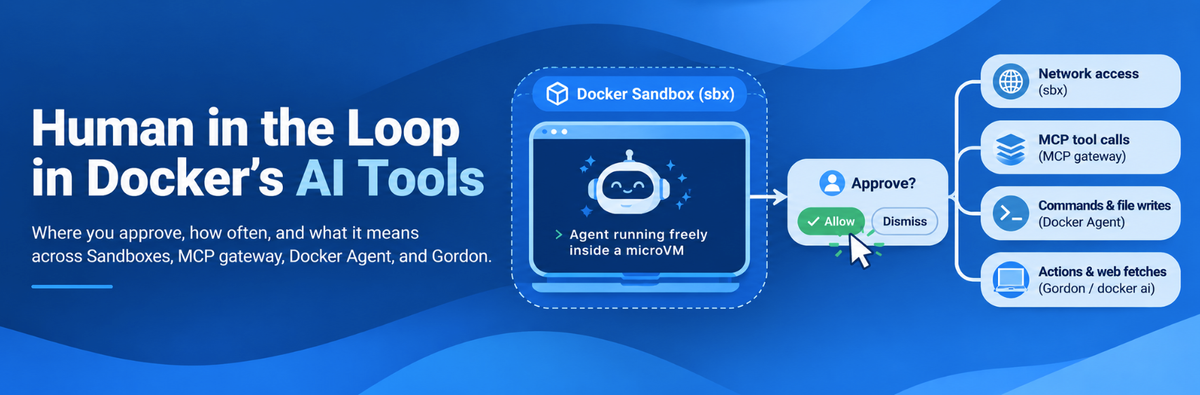
Docker's AI tools do have a human in the loop. But it does not sit in the same place in every tool. Gordon and Docker Agent ask you before each risky action. Docker Sandboxes (sbx) takes the opposite path: the agent runs freely inside a microVM, and you approve things only at the edges, like a new network destination or a governed MCP tool call.
If you have used Claude Code or Codex on your laptop, you know the pain. The agent stops every few seconds to ask "Can I run grep? Can I edit this file?" After the twentieth prompt, most of us stop reading and just press Enter. That is not safety. That is a habit.
The four places a human steps in
Tool | What you approve | How often | How you answer | Skip switch |
|---|---|---|---|---|
Docker Sandboxes ( | New network destinations | Once per host, then saved as a rule |
| Allow rules, or the Allow All preset |
MCP gateway (with AI Governance) | Tool calls matched by a | Every matching call | Elicitation prompt in your MCP client | Only an admin can change the policy |
Docker Agent | Shell commands, file writes, other side effects | Every call, unless you pick "always allow" | Confirmation dialog in the TUI |
|
Gordon ( | Shell commands, file changes, web fetches | Every action, or once per session | Approve in Desktop, or | YOLO mode |
The first two put the human at a boundary. The last two put the human in front of each action.
1. Docker Sandboxes: approval at the network edge
Inside the sandbox, the agent runs free
When you run an agent with sbx run, sbx turns on the agent's own auto-approve mode by default. For example, sbx run copilot -- -p "review this PR" actually runs copilot --yolo -p "review this PR". Gemini and Cursor work the same way.
This is on purpose. The microVM is the safety layer, so the agent does not need to ask you before every npm install or file edit. Inside its box it can make a mess, and your host stays clean.
At the edge, it has to ask
The main place you step in is outbound network traffic. Under the Balanced and Locked Down presets, a request that matches no allow or deny rule is not simply dropped. It is held, and the sandbox gets a message like this:
Approval required for api.example.com.

Review and respond with:
  sbx policy approval ls
You handle it from your host terminal:
$ sbx policy approval ls
$ sbx policy approval inspect APPROVAL-ID
$ sbx policy approval respond APPROVAL-ID --option allow
The options are allow or dismiss. Once you allow it, retry the blocked operation. A few details worth knowing:
- Approval is per host, not per pattern. A policy that allows
*.example.comwith approval asks aboutapi.example.comandcdn.example.comone at a time. - Approved hosts become saved rules.
sbx policy resetwipes them, and you get asked again next time. - A request that hits a deny rule is blocked without asking.
- Add
--no-inputin scripts. Instead of waiting on a prompt, the command fails and prints the command you need to run.
Organization approval
With Docker AI Governance (a paid add-on), admins can turn on Require approval before access for a network policy in Docker Home. Every host that policy allows then needs a developer's confirmation first. The setting applies to the whole policy, not to single rules.
Smaller prompts in sbx
- Workspace trust on the first run.
sbx secret importasks you to confirm each key before saving it.- Clipboard image paste is off until you run
sbx settings set clipboard.imagePaste true. sbx rmandsbx pruneask before deleting.--forceskips the prompt.
2. MCP gateway: approval per tool call
Sandboxes reach MCP servers through Docker's MCP gateway. With AI Governance, admins write MCP access policies in Cedar. Governed MCP activity is deny by default: a request runs only if a permit matches it.
To put a human in front of a call, the admin adds the @requireApproval annotation to a permit:
@requireApproval("write tool call")
permit (principal, action == MCP::Action::"invokeTool", resource);
When a call matches, the gateway sends an MCP elicitation request back to the same client session that made the call. The text inside the annotation is the reason the user sees. Things to know:
- It fails closed. If the client says no, does not support elicitation, or errors out, the call is denied.
- A
forbidalways wins, even over a permit with@requireApproval. - The name must be exact.
@requireConsentor@requireConfirmationdo nothing. sbx mcp addcannot show an elicitation, so putting@requireApprovalon a registration permit just means a denial.
This is not the same as network approval. A network approval creates a lasting rule for a host. An MCP approval covers one call in one session and saves nothing.
3. Docker Agent: approval per action
Docker Agent (formerly cagent) is the classic human-in-the-loop setup. By default it asks before any tool with side effects runs, such as a shell command or a file write. The TUI dialog gives you three choices:
- Approve once: run this one call.
- Always allow: approve this exact pattern for the rest of the session. Other commands from the same tool still ask.
- Deny: reject the call.
For shell commands, the dialog also shows a badge. Known read-only commands like ls, git status, or docker ps are marked safe. Everything else is marked unknown.
Safety modes
You choose how strict a session is with --safety:
Mode | What happens when no rule matches |
|---|---|
| Asks for every tool call, even read-only ones |
| Runs safe calls quietly, asks about the rest |
| Runs everything (the old |
Even in autonomous mode, deny: rules and session ask: rules still apply. You can also toggle auto-approve mid-session with /yolo or Ctrl+Y.
Permission rules
You can set rules in the agent YAML or globally in ~/.config/cagent/config.yaml:
permissions:
  allow:
    - "read_*"
  deny:
    - "shell:cmd=sudo*"
    - "shell:cmd=rm*-rf*"
A global deny cannot be overridden by an agent config.
The agent can ask you, too
The user_prompt toolset lets the agent stop and ask a question mid-task. That might be picking a deploy target, or a yes/no before something it cannot undo. It uses MCP elicitation, so it works in the TUI and CLI. In API or MCP mode it depends on the client.
4. Gordon: propose, then approve
Gordon, Docker's built-in agent in Docker Desktop and docker ai, is built around one idea: Gordon proposes, you approve. By default it asks before it:
- runs a command in your shell
- writes or changes a file
- fetches anything from the internet
In the CLI the prompt looks like Approve? [Y/n/a]. Pressing a approves that tool for the rest of the session:
$ docker ai "check my containers and clean up stopped ones"

Gordon proposes:
  docker ps -a

Approve? [Y/n/a]: a
After that, a follow-up like docker container prune -f runs without asking again. Session approvals reset when you close the Gordon view, exit docker ai, or start a new conversation.
In Docker Desktop, Gordon's tool settings let you go further:
- Disable a tool and Gordon will not even ask to use it.
- Allow-list commands like
cat,grep, andls, even with the shell tool off. - Deny-list commands like
chownandchmod, even with the shell tool on.
Allow-listed commands still ask for approval unless YOLO mode is on. You can stop Gordon mid-run with Ctrl+C in the CLI or Cancel in Desktop.
Per action or per boundary?
There are two models here, and Docker uses both:
- Per action (Gordon, Docker Agent): you see each command before it runs. This works well when the agent is on your real machine with your real files, and the task is short.
- Per boundary (sbx, MCP gateway): the agent works alone inside the box. You only step in when it tries to reach something outside, like a new host or a governed tool. This works well for long tasks where you cannot sit and press Enter all day.
The Docker blog leans hard toward the second model. Posts on Sandboxes talk about running coding agents unsupervised, but safely. One recent post on agent security goes further and argues that human review alone cannot keep up with agents that act at machine speed. The answer is to constrain, observe, and govern the agent, and save human approval for the few calls that really matter.
Practical tips
- Use the Balanced preset in sbx. You get a prompt for unknown hosts instead of a silent failure.
- Pre-allow what you know. Run
sbx policy allow networkfor hosts your project always needs, so approvals only show up for surprises. - Watch
sbx policy approval lswhen an agent stalls. A stucknpm installis often a pending approval. - Keep
@requireApprovalfor writes. Use it on tool calls that change things, not on reads, or your team will learn to click through. - Use
--yoloonly inside a sandbox or in CI. Pair it withdeny:rules for commands likerm -rfandsudo. - Use
--no-inputin scripts, so a pending approval fails fast instead of hanging.
Wrapping up
So, is there a human in the loop in the Docker ecosystem? Yes, in four places. But in sbx, the loop has moved. You no longer approve each grep. You approve the moments when the agent tries to leave its box. For most long-running agent work, that is the better trade: fewer prompts, and each one actually means something.
Sources
- sbx policy approval (CLI reference)
- sbx policy approval respond
- Respond to approval requests
- Local policy
- Policy concepts
- Organization policies
- MCP access policies
- MCP policy reference
- Docker Sandboxes usage
- Docker Sandboxes settings
- Docker Agent permissions
- Docker Agent shell tool
- Docker Agent user prompt tool
- Gordon permission model
- Configure Gordon's tools
- Docker Sandboxes: Run Claude Code and Other Coding Agents Unsupervised (but Safely)
- Docker blog: Sandboxes tag