How to Increase Context Window Size in Docker Model Runner with llama.cpp
Frustrated by tiny context windows when you know your model can handle so much more? If you're running llama.cpp through Docker Model Runner and hitting that annoying 4096 token wall, there's a simple fix you need to know about. Your model isn't the problem—your configuration is.

The Problem: Limited Context Window Despite Model Capabilities
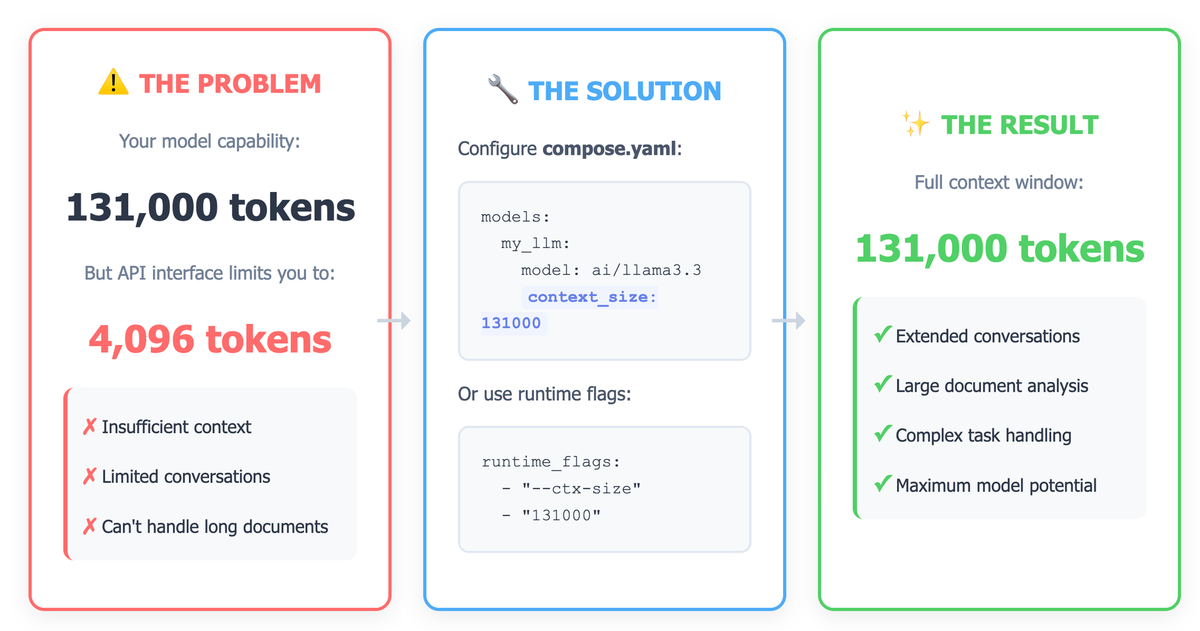
If you're running a large language model using Docker Model Runner (DMR) with llama.cpp, you might encounter a frustrating issue: your model supports a massive context window (like 131K tokens), but the API interface stubbornly limits you to just 4096 tokens. This artificial constraint can significantly impact your model's ability to handle long documents, extended conversations, or complex tasks requiring substantial context.
The good news? This is easily fixable with the right configuration.
Understanding the Context Window Limitation
The 4096 token limit is often a default setting in the inference engine, not a limitation of your model itself. When Docker Model Runner starts your model with llama.cpp, it uses default parameters unless explicitly told otherwise. This means even though your model can handle 131K tokens, the runtime environment caps it at a much lower value.
Solution: Configure Context Size
There are two ways to set the context window size.
Using CLI directly
As of today, there is no built-in command to check the context size. You might expect to see the context size when listing or inspecting models.
docker model list
Result:
MODEL NAME           PARAMETERS  QUANTIZATION    ARCHITECTURE  MODEL ID      CREATED       SIZE
ai/llama3.2:1B-Q8_0  1.24 B      Q8_0            llama         a15c3117eeeb  7 months ago  1.22 GiB
ai/smollm2           361.82 M    IQ2_XXS/Q4_K_M  llama         354bf30d0aa3  7 months ago  256.35 MiB
Notice anything missing? There's no context_size column. Similarly, docker model inspect doesn't show this information either. This means we need to test the actual behavior through the API.
Testing Methodology: The Definitive Approach
Save this as test-context.sh:
#!/bin/bash

MODEL="ai/smollm2"

echo "Step 1: Warming up the model with small prompt..."
curl -s http://localhost:12434/engines/llama.cpp/v1/chat/completions \
  -H "Content-Type: application/json" \
  -d "{
      \"model\": \"$MODEL\",
      \"messages\": [{
          \"role\": \"user\",
          \"content\": \"Hello\"
      }]
  }" > warmup.json

echo "Response:"
cat warmup.json | python3 -m json.tool

echo -e "\nWaiting 5 seconds for model to fully load..."
sleep 5

echo -e "\nStep 2: Testing with large prompt (5000 words)..."
python3 -c "print('test ' * 5000)" > large_prompt.txt

curl -s http://localhost:12434/engines/llama.cpp/v1/chat/completions \
  -H "Content-Type: application/json" \
  -d @- << EOF > response.json
{
  "model": "$MODEL",
  "messages": [{
    "role": "user",
    "content": "$(cat large_prompt.txt)"
  }]
}
EOF

echo "Checking response..."
if grep -q '"error"' response.json; then
    echo "❌ Context limit exceeded or error occurred"
    cat response.json | python3 -m json.tool
else
    echo "✅ Large context works!"
    python3 << 'PYTHON'
import json
with open('response.json') as f:
    r = json.load(f)
    print(f"Prompt tokens: {r['usage']['prompt_tokens']}")
    print(f"Total tokens: {r['usage']['total_tokens']}")
    if r['usage']['prompt_tokens'] > 4096:
        print("\n🎉 Context window is DEFINITELY larger than 4096!")
PYTHON
fi

# Cleanup
rm large_prompt.txt warmup.json response.json
Make it executable:
chmod +x test-context.shTest BEFORE Configuration
Run the test script before applying any configuration changes:
❌ Context limit exceeded or error occurred
{
    "error": {
        "code": 400,
        "message": "the request exceeds the available context size. try increasing the context size or enable context shift",
        "type": "exceed_context_size_error",
        "n_prompt_tokens": 5031,
        "n_ctx": 4096
    }
}
Key indicators:
n_prompt_tokens: 5031- Your prompt sizen_ctx: 4096- Current context window limit- Error message: "request exceeds the available context size"
This confirms you're hitting the 4096 token limitation.
Apply Configuration
Now configure your model with a larger context window:
docker model configure --context-size=131000 ai/smollm2Test AFTER Configuration
Run the same test script again:
./test-context.sh
```

**Expected Output (After Configuration):**
```
Step 1: Warming up the model with small prompt...
Response:
{
    "choices": [...],
    "usage": {
        "prompt_tokens": 2,
        "completion_tokens": 5,
        "total_tokens": 7
    }
}

Waiting 5 seconds for model to fully load...

Step 2: Testing with large prompt (5000 words)...
Checking response...
✅ Large context works!
Prompt tokens: 5031
Total tokens: 5035

🎉 Context window is DEFINITELY larger than 4096!
Success indicators:
- No error message
- Prompt tokens (5031) processed successfully
- Total tokens exceed 4096
Testing Even Larger Contexts
Want to verify you have the full 131K context window? Test with progressively larger prompts:
#!/bin/bash

MODEL="ai/smollm2"

echo "Testing progressively larger contexts..."
echo "========================================"

# Test 10K tokens
echo -e "\nTest 1: ~10,000 tokens"
RESULT=$(curl -s http://localhost:12434/engines/llama.cpp/v1/chat/completions \
  -H "Content-Type: application/json" \
  -d "{\"model\": \"$MODEL\", \"messages\": [{\"role\": \"user\", \"content\": \"$(python3 -c 'print("test " * 10000)')\"}]}")

if echo "$RESULT" | grep -q '"error"'; then
    echo "❌ Failed at 10K tokens"
else
    echo "✅ Success: $(echo "$RESULT" | python3 -c "import sys, json; r=json.load(sys.stdin); print(f\"{r['usage']['prompt_tokens']} tokens\")")"
fi

# Test 20K tokens
echo -e "\nTest 2: ~20,000 tokens"
RESULT=$(curl -s http://localhost:12434/engines/llama.cpp/v1/chat/completions \
  -H "Content-Type: application/json" \
  -d "{\"model\": \"$MODEL\", \"messages\": [{\"role\": \"user\", \"content\": \"$(python3 -c 'print("test " * 20000)')\"}]}")

if echo "$RESULT" | grep -q '"error"'; then
    echo "❌ Failed at 20K tokens"
else
    echo "✅ Success: $(echo "$RESULT" | python3 -c "import sys, json; r=json.load(sys.stdin); print(f\"{r['usage']['prompt_tokens']} tokens\")")"
fi

echo -e "\n========================================"
Alternative Testing Method: Python Script
If you prefer Python, here's a cleaner testing script:
#!/usr/bin/env python3
import requests
import json

MODEL = "ai/smollm2"
ENDPOINT = "http://localhost:12434/engines/llama.cpp/v1/chat/completions"

def test_context_size(num_words, description):
    """Test with a specific number of words"""
    print(f"\n{description}")
    print("-" * 50)

    prompt = "test " * num_words

    try:
        response = requests.post(
            ENDPOINT,
            headers={"Content-Type": "application/json"},
            json={
                "model": MODEL,
                "messages": [{
                    "role": "user",
                    "content": prompt
                }]
            },
            timeout=60
        )

        result = response.json()

        if "error" in result:
            print(f"❌ FAILED: {result['error']['message']}")
            if 'n_ctx' in result['error']:
                print(f"   Current limit: {result['error']['n_ctx']} tokens")
                print(f"   Attempted: {result['error'].get('n_prompt_tokens', 'N/A')} tokens")
            return False
        else:
            print(f"✅ SUCCESS")
            print(f"   Prompt tokens: {result['usage']['prompt_tokens']}")
            print(f"   Total tokens: {result['usage']['total_tokens']}")
            return True

    except Exception as e:
        print(f"❌ Error: {e}")
        return False

if __name__ == "__main__":
    print("=" * 50)
    print(f"Testing Context Window for {MODEL}")
    print("=" * 50)

    # Test suite
    tests = [
        (500, "Test 1: Small prompt (~600 tokens)"),
        (3000, "Test 2: Medium prompt (~3,600 tokens)"),
        (5000, "Test 3: Large prompt (~6,000 tokens)"),
        (10000, "Test 4: Very large prompt (~12,000 tokens)"),
    ]

    results = []
    for num_words, description in tests:
        result = test_context_size(num_words, description)
        results.append(result)
        if not result:
            print("\n⚠️  Stopping tests - context limit reached")
            break

    print("\n" + "=" * 50)
    print("Summary:")
    print("=" * 50)

    if all(results):
        print("🎉 All tests passed! Your context window is working!")
    elif results[0]:
        print("⚠️  Context window is limited. Check your configuration.")
    else:
        print("❌ Model not responding correctly. Check Docker Model Runner status.")
Save as test_context.py and run:
python3 test_context.pyUsing Docker Compose
The alternative way to increase your context window is by setting the context_size attribute in your compose.yaml file. This tells Docker Model Runner exactly how large a context window to allocate when starting your model.


Basic Configuration
Here's a simple example of how to set up your compose.yaml:
services:
  my-app:
    image: my-app-image
    models:
      - my_llm

models:
  my_llm:
    model: ai/llama3.3:70B-Q4_K_M
    context_size: 131000
Key points:
- Replace
ai/llama3.3:70B-Q4_K_Mwith your actual model identifier - Set
context_sizeto match your model's maximum supported context (e.g., 131000 for models with 131K token windows) - Ensure the value doesn't exceed what your hardware can handle
Advanced Configuration with Runtime Flags
If you need more control or the basic configuration isn't working, you can explicitly pass the context size as a runtime flag to llama.cpp:
models:
  my_llm:
    model: ai/llama3.3:70B-Q4_K_M
    context_size: 131000
    runtime_flags:
      - "--ctx-size"
      - "131000"
This approach directly passes the --ctx-size parameter to the llama.cpp inference engine, giving you explicit control over the context window.
Prerequisites and Requirements
Before implementing this solution, ensure you have:
- Docker Compose v2.38.0 or later - Model support in Docker Compose requires this version or newer
- Sufficient VRAM - Larger context windows require more GPU memory. A 131K context window can require 10GB+ of VRAM depending on your model size
- Compatible model - Verify your model actually supports the context size you're setting
Troubleshooting Common Issues
Still Seeing 4096 Token Limit?
If you're still constrained after updating your configuration:
- Verify Compose file is being used - Ensure Docker is actually reading your
compose.yamlfile - Check Docker Compose version - Run
docker compose versionto confirm you're on v2.38.0+ - Restart the service - After changing configuration, rebuild and restart:
docker compose up --build - Check logs - Look for initialization messages that show the actual context size being used
Model Fails to Start
If your model won't start after increasing context size:
- Insufficient VRAM - The most common cause. Your GPU might not have enough memory for the larger context
- Reduce context size - Try incrementally increasing from 4096 (e.g., 8192, 16384, 32768) to find what your hardware supports
- Check system resources - Monitor GPU memory usage with tools like
nvidia-smi
Performance Degradation
Larger context windows use more memory and can slow down inference:
- Start with a moderate increase (e.g., 32K instead of 131K) and scale up as needed
- Only use what you actually need for your use case
- Consider the trade-off between context size and inference speed
Best Practices
- Match your use case - Don't always max out the context window. Use 32K for most conversations, 64K for document analysis, and 131K only when truly needed
- Monitor resources - Keep an eye on VRAM usage to avoid out-of-memory errors
- Test incrementally - Start with smaller increases and scale up to ensure stability
- Document your configuration - Note the context size in your compose file comments for future reference
Conclusion
Increasing the context window in Docker Model Runner is straightforward once you know where to configure it. By setting the context_size parameter in your compose.yaml file, you can unlock your model's full potential and handle much larger contexts than the default 4096 tokens.
Remember that hardware limitations, particularly VRAM, are the real bottleneck for large context windows. Start conservatively, test thoroughly, and scale up based on your actual needs and available resources.
Further Resources: