1Password + Docker Sandboxes: Keeping Secrets Out of the Box
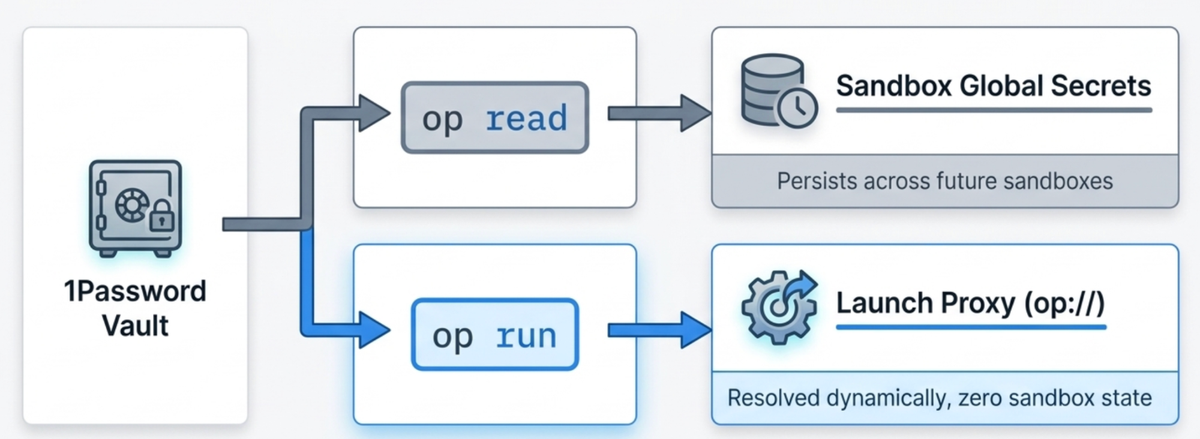
Running an AI agent in a Docker Sandbox raises one question first: where do the API keys live. This hands-on guide wires the 1Password CLI into Docker Sandboxes so credentials resolve from your vault on demand and never sit in plaintext inside the container.

The Problem Statement
You want to run an AI coding agent inside a Docker Sandbox. The sandbox keeps the agent isolated from the rest of your machine. The problem is that agent still needs API keys to do anything.
So where do those keys go?
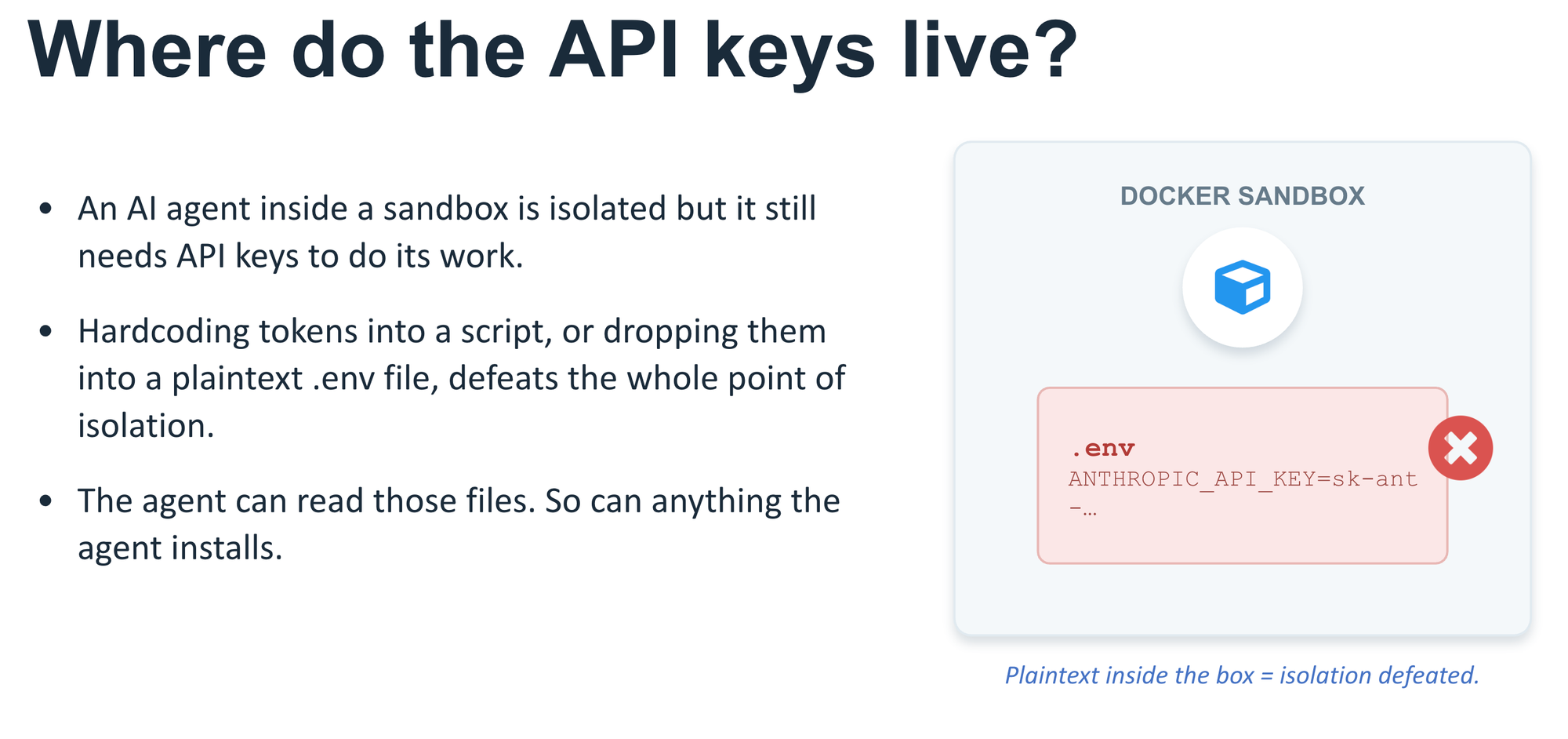
It's always recommended not to hardcode tokens into a script. You shouldn't drop them into a plaintext .env file inside the workspace. The agent can read those files. So can anything the agent installs. If your secrets sit in plaintext inside the box, the isolation you wanted is already gone.
This guide wires the 1Password CLI into Docker Sandboxes. Your keys stay in your vault. They get pulled out only when they are needed. They never sit in plaintext inside the container.
sbx is just short for docker sandbox. Both commands do the same thing. The examples use sbx.What you need
- sbx installed, up and running
- A 1Password account, with the desktop app installed and unlocked.
- The agent CLI you want to run (
claude,codex,copilot, and so on). - A terminal on macOS, Linux, or Windows.
How the sandbox handles secrets
Before you set anything up, understand the one piece that surprises people.
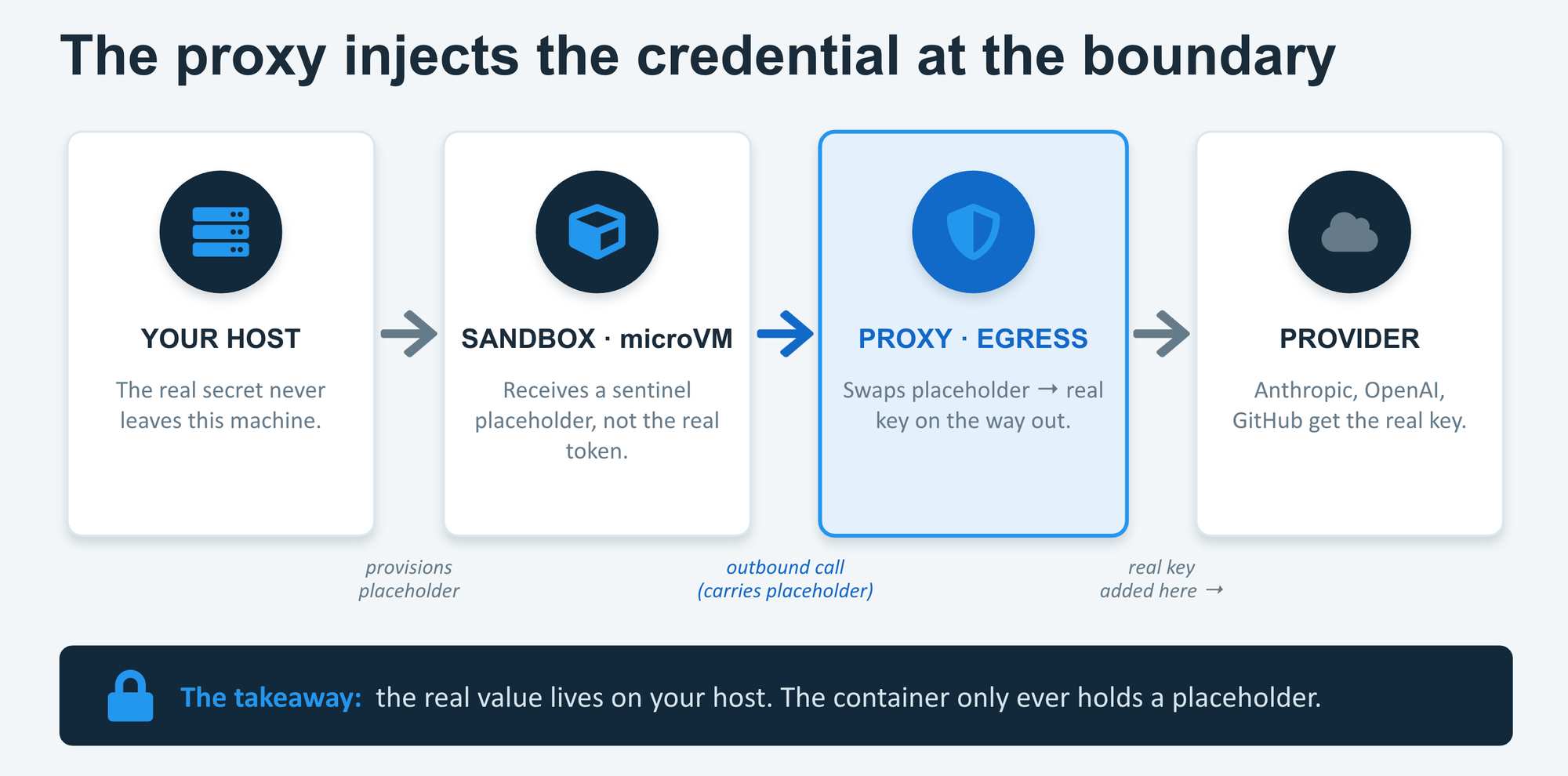
Docker Sandboxes run a credential proxy. In plain terms:
- The real secret stays on your host machine.
- The sandbox never gets the real token. It gets a fake stand-in called a sentinel.
- When a tool inside the sandbox calls out to a known provider (like Anthropic or OpenAI), the proxy catches that request on its way out.
- The proxy swaps the fake placeholder for the real key at that moment.
- The key is added at the network boundary. It never has to live inside the container.
That is the whole trick. And there is one edge to remember.
The placeholder is only swapped for outbound calls to recognized providers. If code inside the box reads the environment variable directly, for a local job rather than an outbound call, it sees the fake placeholder, not your real key. So if a library needs the raw secret in hand (to sign something locally, or to reach a provider the proxy does not know), it gets the placeholder and fails. The error looks like a login failure. Keep this in mind when "the key is set but the call still fails."
Step 1: Install the 1Password CLI
The CLI is a tool called op.
- macOS:
brew install --cask 1password-cli - Linux (Debian/Ubuntu): add the 1Password apt repo, then
sudo apt install 1password-cli - Windows:
winget install AgileBits.1Password.CLI
You can confirm it by running the following command:
op --versionStep 2: Sign in and verify the session
This is the step the happy-path tutorials skip - and the first place things break.
The cleanest setup is the desktop-app integration, so you unlock with the same fingerprint or face prompt you already use:
- Open and unlock the 1Password desktop app.
- Go to Settings > Developer.
- Turn on Integrate with 1Password CLI.
- Turn on biometric unlock if you want it.
If you don't use the desktop integration, sign in manually:
eval $(op signin)Either way, you can essily verify the session before you go further:
op whoamiIf this prints your account (URL, email, user ID), the session is live. If it says "You are not currently signed in", stop and fix that first - every op read will fail until op whoami works.
Two things that bite people here:
- Multiple accounts. If you have both a personal and a work 1Password account on the machine,
opcan get ambiguous. Add--account <shorthand>(for example--account dockerteam) orexport OP_ACCOUNT=<shorthand>. - The silent-pipe trap. When you pipe
op readinto another command andop readfails (not signed in, bad reference), it sends nothing down the pipe. The downstream command then shows its own confusing error - forsbx, that'sEnter secret: ERROR: input cannot be empty. Bash reports the last command's exit code, so the real failure hides. Always setpipefailso the pipeline fails loudly at the real cause:
set -o pipefailStep 3: Find your real secret reference (don't assume it)
Every reference uses one format:
op://<vault>/<item>/<field>Most tutorials hard-code op://Work/GitHub/token as if it's universal. It isn't. Work is 1Password's default personal vault name - it usually doesn't exist on a business account. Build your reference from your values, verifying one segment at a time.
1. The vault. List what you actually have:
op vault listOn a business account you'll see names like Employee, Marketing, or Shared CI/CD deployment credentials but not Work. Pick the one holding your key.
2. The item. Don't assume GitHub (or anything else):
op item list --vault EmployeeThis shows the real item titles. In this example, the relevant one is an OpenAI API key.
3. The field. Check the field name - it's often not token:
op item get "OpenAI API Key (docker work)" --vault EmployeeItems created as 1Password's API Credential category (Category: API_CREDENTIAL) store the secret in a field literally named credential. That's why provider references end in /credential, not /token. Note that op item get shows [use '… --reveal' to reveal] instead of the value - inspecting an item is safe to screenshot; only --reveal or op read exposes the secret.
Don't hand-build references from display titles
Here's the trap that costs the most time. A title that's perfectly valid in the 1Password app can be an invalid secret reference. Spaces are tolerated, but parentheses are not:
op read "op://Employee/OpenAI API Key (docker work)/credential"
# ERROR: invalid character in secret reference: '('
So, don't assemble op:// paths by hand from titles. Use one of these instead:
- Rename the item to a clean handle (best for tutorials and scripts):
op item edit "OpenAI API Key (docker work)" --vault Employee --title "OpenAI"Your reference becomes the tidy op://Employee/OpenAI/credential.
- Use the item's UUID (script-safe; it's a 26-character alphanumeric string with no special characters, and it survives renames):
op://Employee/<item-uuid>/credential- Copy Secret Reference from the desktop app (right-click the field → Copy Secret Reference) - 1Password builds a valid reference for you.
Verify the reference resolves without showing the value
Once the path is clean, confirm it works. But don't op read to a bare terminal that prints your key to the screen, your scrollback, and any screen-share. The goal was never to see the key; it was to confirm the reference resolves and then hand it straight to the consumer. Verify safely with op item get (which hides the value), and reserve op read for piping:
# safe: confirms the item/field exist, value stays hidden
op item get "OpenAI" --vault Employee

# the value goes straight into sbx — never to your screen
op read "op://Employee/OpenAI/credential" | sbx secret set -g openai
If a secret ever does print to your terminal (or into a chat, a log, a screenshot), treat it as compromised and rotate it. Because the value lives in 1Password, rotation is painless: update the item, and the same op:// reference keeps working.Three ways to inject secrets
There are three patterns. They differ in how long the secret sticks around.
Pattern 1: Persistent - set it once, reuse everywhere
Use this when you want a key available to every sandbox you create from now on. Pass the value over stdin (the documented form), and always specify a scope (-g or a sandbox name):
set -o pipefail
op read "op://Employee/OpenAI/credential" | sbx secret set -g openai
op read pulls the value from your vault; sbx secret set -g stores it once for all future sandboxes. The -g means global.
Two things to know:
- "Global" means future sandboxes. A sandbox that is already running won't pick up the new value. To update a running one, scope it by name:
op read "op://Employee/OpenAI/credential" | sbx secret set <sandbox-name> openai. - Always specify the scope on the pipe. If you don't pass
-gor a sandbox name,sbxfalls back to an interactive prompt reading from the same stdin and can swallow your value.
Updating or rotating a stored secret - a real footgun. If the secret already exists, sbx secret set asks Overwrite? (y/N). But stdin is already consumed by the piped value, so the prompt can't read your answer and the write is Cancelled - while sbx still exits 0, so a chained && echo "STORED ok" prints "STORED ok" even though nothing was stored. Don't trust that message on an update. Remove first, then set (note the -g - without it, sbx secret rm openai treats openai as a sandbox name, not the global service):
sbx secret rm -g openai          # confirm the flag with: sbx secret rm --help
op read "op://Employee/OpenAI/credential" | sbx secret set -g openai
sbx secret ls                    # confirm the value's tail actually changed
And the real point about rotation: the thing that neutralizes a leaked key is revoking it at the provider (e.g. platform.openai.com), not overwriting sbx's cached copy. Revoke, mint a new key, paste it into the 1Password item - your op://Employee/OpenAI/credential reference keeps working unchanged.
Pattern 2: Ephemeral - resolve fresh every launch
The strongest setup. The key is never stored. It's pulled fresh each time you start the sandbox:
OPENAI_API_KEY="op://Employee/OpenAI/credential" op run -- sbx run codex
ANTHROPIC_API_KEY="op://Employee/Anthropic/credential" op run -- sbx run claude
op run resolves the reference, runs your command with the value present, then clears it on exit.
One catch: the sandbox only forwards variables it recognizes - the built-in service variables like ANTHROPIC_API_KEY and OPENAI_API_KEY. It will not pass an arbitrary variable it doesn't know. So MY_CUSTOM_TOKEN="op://…" resolves on your host and then goes nowhere. (Handling truly custom variables is the experimental section at the end.)
The payoff: the key is never written to the sandbox secret store and never appears inside the box as a real value.
Pattern 3: Many providers - use an env file
When an agent needs several keys at once, inline gets messy. Put them in a file that holds only references - never the secrets:
# .sbx-secrets.env
ANTHROPIC_API_KEY=op://Employee/Anthropic/credential
OPENAI_API_KEY=op://Employee/OpenAI/credential
Launch with the file:
op run --env-file=.sbx-secrets.env -- sbx run claudeop run reads the file, resolves every reference, and passes the values as temporary variables. The file is safe to keep because it holds pointers, not secrets. Still, add it to .gitignore so nobody mistakes it for a template to fill with real keys.
One mapping to keep straight: Pattern 1 stores secrets by service name (openai), while op run and the env file use environment-variable names (OPENAI_API_KEY). If you mix them, confirm which name your tool reads inside the container.
Let's prove it: containment and injection, end to end
This is the demonstration the whole exercise exists for. Store the key (Pattern 1), start a throwaway shell sandbox, and read the variable from inside:
sbx run --name op-test shell -d
sbx exec op-test -- bash -lc 'echo "OPENAI_API_KEY=$OPENAI_API_KEY"'
sbx rm op-test
Actual output (trimmed):
credential for "openai" discovered but no domains allowed by your bindings; not injecting
...
OPENAI_API_KEY=proxy-managed
Containment is verified. Inside the box, OPENAI_API_KEY is the sentinel proxy-managed, never your real key. The agent process cannot read the credential. This is reproducible, same result every run.
Injection is verified, but it needs a domain binding. The not injecting line is the proxy telling you it holds the key but has nowhere to put it. Injection only happens when the service has an entry under bindings: in ~/.config/sbx/credentials.yaml. On a fresh install that file lists only the services you've used (in this case box and firecrawl) - openai and anthropic had no binding, which is exactly why they logged not injecting.
Add the binding (back the file up first as it holds your working config):
cp ~/.config/sbx/credentials.yaml ~/.config/sbx/credentials.yaml.bak# ~/.config/sbx/credentials.yaml — add under bindings:, same indent as the others
openai:
discovery: []
allowedDomains:
- api.openai.comStart a fresh sandbox (existing ones cache the old config) and the openai ... not injecting line is gone. Now prove the swap on a real call - the box sends the sentinel, the proxy substitutes the real key on the way to api.openai.com:
sbx run --name inj-test shell -d
sbx exec inj-test -- bash -lc 'curl -s -o /dev/null -w "%{http_code}\n" https://api.openai.com/v1/models -H "Authorization: Bearer $OPENAI_API_KEY"'
sbx rm inj-test
Result: 200. The agent never held the real key ($OPENAI_API_KEY inside the box is still the sentinel), yet the outbound request authenticated - because the proxy swapped it in at the boundary. That's both halves, demonstrated.
The rule, in one line: a service injects only when it has an allowedDomains binding. Add the binding → the not injecting warning disappears → the call succeeds.
A few things that bit during testing, worth knowing:
- Built-in agents don't auto-bind. A bare
shellandsbx run codexboth loggednot injectingforopenaiuntil the binding existed - don't assume an agent ships it. OPENAI_API_KEYis special-cased. Trying to register it viaset-customwas shadowed by the built-in sentinel. For built-in providers, use the service secret (sbx secret set -g openai) plus the binding above - notset-custom.- A service secret and a custom secret for the same provider conflict. Keep one.
sbx secret rm -g openairemoves the service secret;sbx secret rm -g --host api.openai.comremoves the custom one (custom secrets are keyed by target host, not service name).
Troubleshooting: the errors you'll actually hit
These are the real failures from setting this up, each isolating one segment of the path.
| Error | What it means | Fix |
|---|---|---|
You are not currently signed in | No live op session | eval $(op signin) or enable desktop integration; verify with op whoami |
Enter secret: input cannot be empty | op read failed upstream and piped nothing | set -o pipefail; fix the real cause (usually auth) |
"…" isn't an item in the "Work" vault | The Work vault doesn't exist on your account | op vault list; use your real vault name |
"GitHub" isn't an item in the … vault | Wrong item name | op item list --vault <vault> |
invalid character in secret reference: '(' | You hand-built a reference from a title with parentheses | Rename the item, use the UUID, or Copy Secret Reference |
Wrong field (/token fails) | API Credential items use the credential field | op item get <item> to see field names |
Overwrite? (y/N): Cancelled yet STORED ok printed | Secret existed; the pipe consumed stdin so the prompt auto-cancelled, but sbx exited 0 | sbx secret rm -g <service> first, then set; don't trust a chained echo |
No secret found for service … in scope "openai" | sbx secret rm openai read openai as a sandbox/scope name | Use sbx secret rm -g openai for the global secret |
accepts at most 1 arg(s), received 7 | An inline # comment in a pasted block — interactive zsh doesn't strip it | Drop comments from pasted command lines |
credential … discovered but no domains allowed by your bindings; not injecting | The proxy holds the key but has no domain mapping for it | Add an allowedDomains binding under bindings: in ~/.config/sbx/credentials.yaml (e.g. openai → api.openai.com), then use a fresh sandbox. Verified: the warning then disappears and the call returns 200 |
Custom secret ignored; $OPENAI_API_KEY still shows proxy-managed | set-custom --env OPENAI_API_KEY collides with a built-in service variable that's special-cased | Use set-custom only for variable names the proxy doesn't own; built-in providers go through their service binding |
Custom secret and sbx secret set -g <service> both present | The plain service secret shadows the custom one | Remove the service secret: sbx secret rm -g <service> |
(Experimental) Custom variables the proxy doesn't know
Status (tested onv0.34.0-rc1): the custom-secret mechanism is real -sbx secret lsshows aCUSTOM SECRETStable withTARGETS(the host),ENV(the in-box variable),PLACEHOLDER(the sentinel), andSECRET(the host-side value). But two things did not hold on this build: (1)sbx secret set-custom --helpshows only--value/--token, which take a literal secret - there is no nativeop://flag yet, despite changelog mentions, so you resolve on the host yourself (below); and (2) it does not override built-in service variables likeOPENAI_API_KEY- those are special-cased toproxy-managedand shadow the custom placeholder. Useset-customfor variable names the proxy doesn't already own. Safety note:sbx secret lsprints partial real secrets and the full placeholder, so mask theSECRETandPLACEHOLDERcolumns before screenshotting.
The patterns above cover built-in services. If your app needs a credential for a service the proxy doesn't recognize - an internal gateway, Slack, a non-built-in provider - there are two cases:
- The variable authenticates an outbound HTTPS call to a host you can name. Register a custom placeholder mapped to that host. Resolve the
op://reference on the host yourself, since this build's--valuetakes a literal (use command substitution so the key never enters shell history as a typed literal):
  sbx secret set-custom -g \
    --host api.example.com \
    --env MY_APP_TOKEN \
    --value "$(op read op://Employee/MyApp/credential)"
Inside the box, MY_APP_TOKEN is set to a generated placeholder; the proxy is meant to swap in the real value on outbound calls to api.example.com. Note this is a static snapshot - when you rotate the secret in 1Password, re-run the command. (Use a variable name that isn't a built-in service variable, or it'll be shadowed as described above.)
- The app reads the literal value in-process (a database URL, a signing key, anything non-HTTP). The proxy can't help here by design - there is no outbound request to intercept. Your options are to write the value into the sandbox (for example via
/etc/sandbox-persistent.sh) or runopinside the sandbox, and accept that the value then lives in the VM.
So before reaching for set-custom, ask: what does the app actually do with the variable? That answer decides whether the secret can stay out of the box.
Secrets are only half of trust
Keeping keys out of the box solves one problem. It does not control what the agent can do to the files you mounted.
By default, the agent trusts its mounted workspace. It can write to any file, including hidden ones. Some of those changes won't show up in a normal review. For example, changes to .git/hooks/ don't appear in a regular git diff, but a hook runs the next time you commit on your host.
So review before you act:
git status
git diff
ls -la .git/hooks/
That last command catches what the first two miss.
The bottom line
The three patterns map to how long you want a secret to exist:
op read | sbx secret set -g- resolve once, reuse across every future sandbox.op runwith inline references - resolve fresh each launch, never stored.op run --env-file- several providers at once.
In all three, the real value stays in your vault and the sandbox only ever holds the sentinel, it never sits in plaintext inside the box (containment). For the proxy to then inject the key on an outbound call, the service needs an allowedDomains binding in ~/.config/sbx/credentials.yaml. Add it, and the call authenticates - verified end to end with a 200 against api.openai.com, while the key inside the box stays the sentinel.
And two habits that the debugging above earns the hard way: don't hand-build op:// references from display titles (rename to clean handles or copy the reference), and never op read a secret to a bare terminal - verify with op item get, then pipe straight into the consumer.
All you need to do is set it up once. After that, "where do my keys live?" has one answer: in your vault, pulled on demand, never in the box.
Further Readings
 Docker Inc
 Ajeet Singh Raina
 Docker Inc